
How to make a Reservation
After logging in, click on "Schedule" > "Find A Time".

Fill the desired details and click "Find A Time".
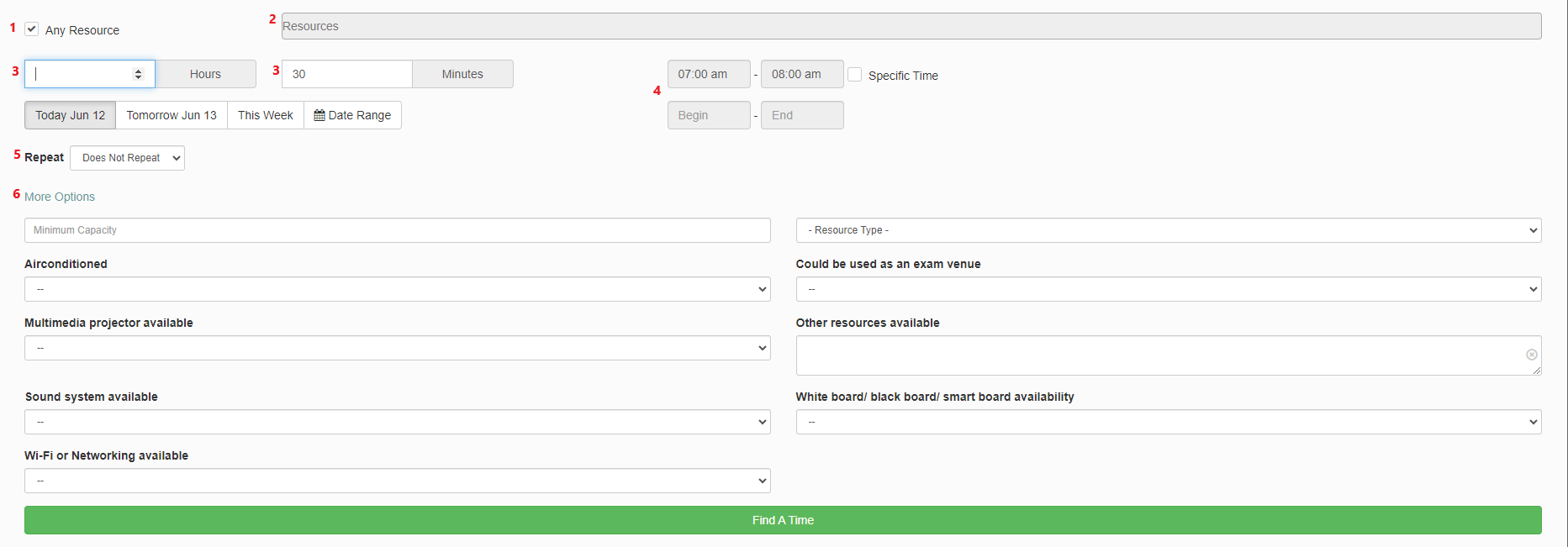
Please note the functionality of each numbered boxes in the above image are as follows.
-
-
- If you tick this box, your search will cover all resources. If this box is not checked, you must specify resources in box 2.
- Begin typing to find the required resources, then pick from the drop-down menu. You have the option of selecting multiple resources.
- You have the option of specifying the required time period.
- If you have a specific time in mind, tick the box and enter the start and end times.
- Set the frequency of repetition. Depending on the resource settings, this option may or may not operate.
- To narrow your search, click "More options" and then select the appropriate options.
-
Once you click on "Find A Time" you will be prompted with available slots. Select a desired slot from the list.

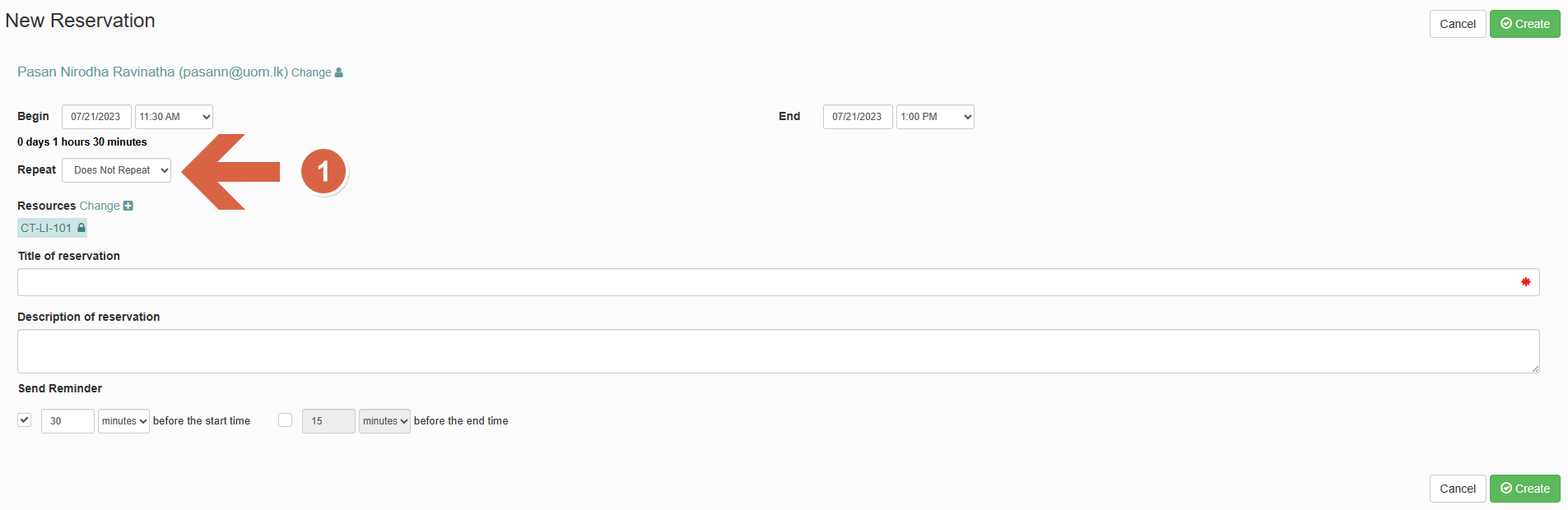
You will be redirected to a reservation page once you have selected a slot. Your reservation must have a title, and a description is optional but encouraged. When you are ready with all the details, click Create to create a booking. Keep in mind that this is a non-recurrent booking.

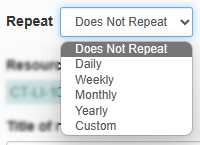
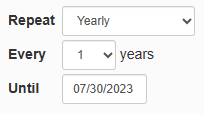
If you need to make a recurrent reservation, follow below figure and steps.




You will be prompted a success message if your reservation is made. If unsuccessful, the reason will be displayed.
Please note that for resource that need approval, the reservation will be confirmed only after the approval authority approves the request.
You will be prompted a success message if your reservation is made. If unsuccessful, the reason will be displayed.