
Linking MS OneDrive File Uploads
Opening your OneDrive
- Open a web browser.
- Navigate to the Microsoft Office homepage: www.office.com
- Click “Sign in” and sign into your Microsoft account.
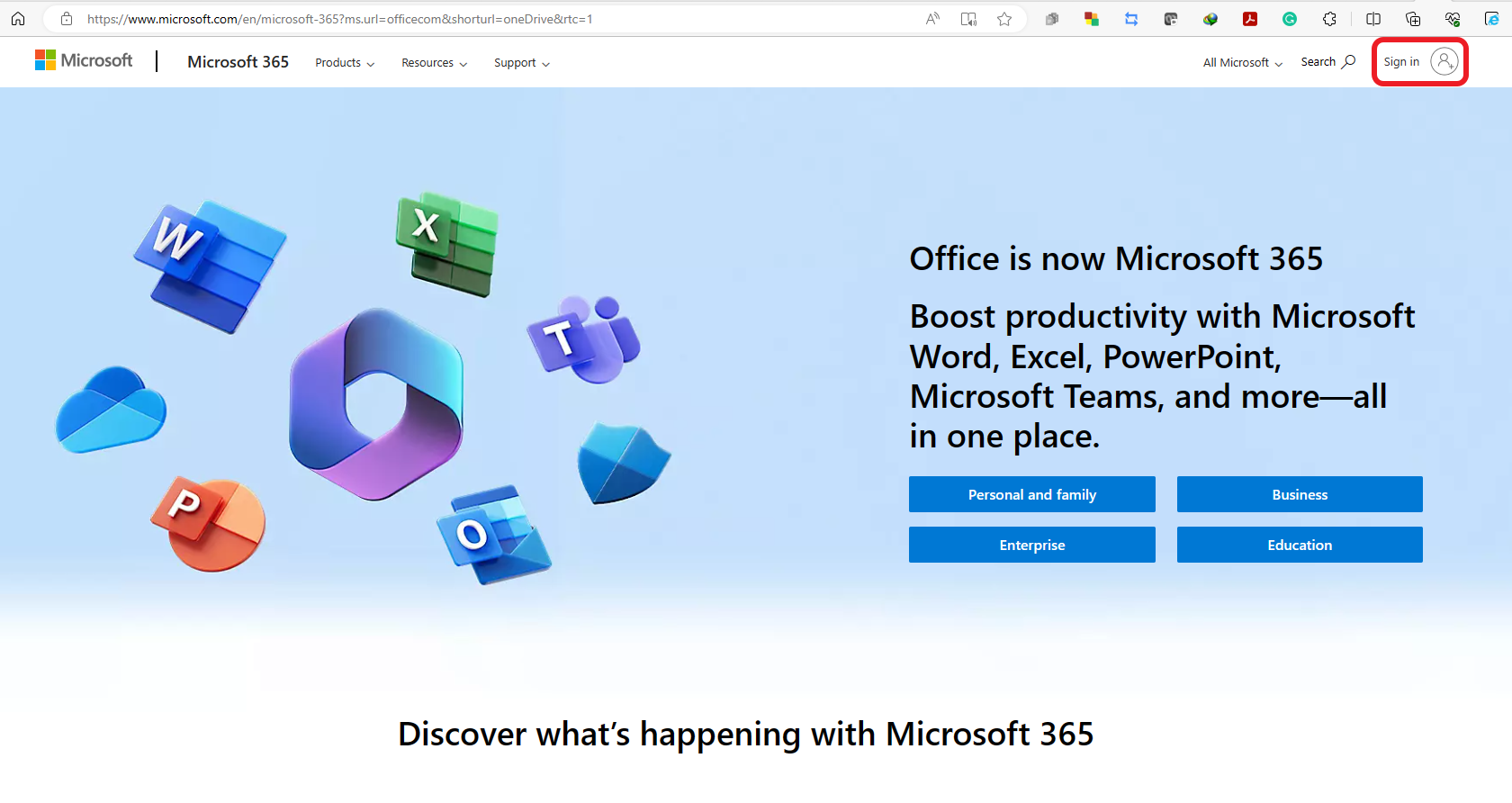
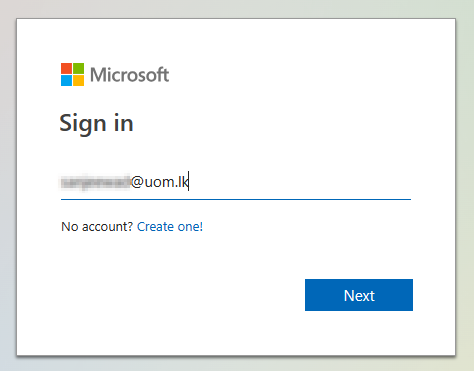
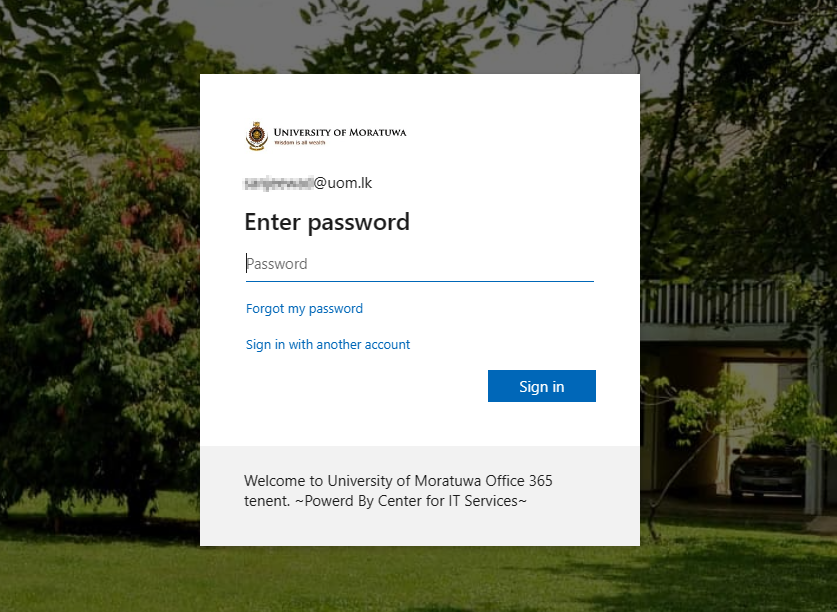
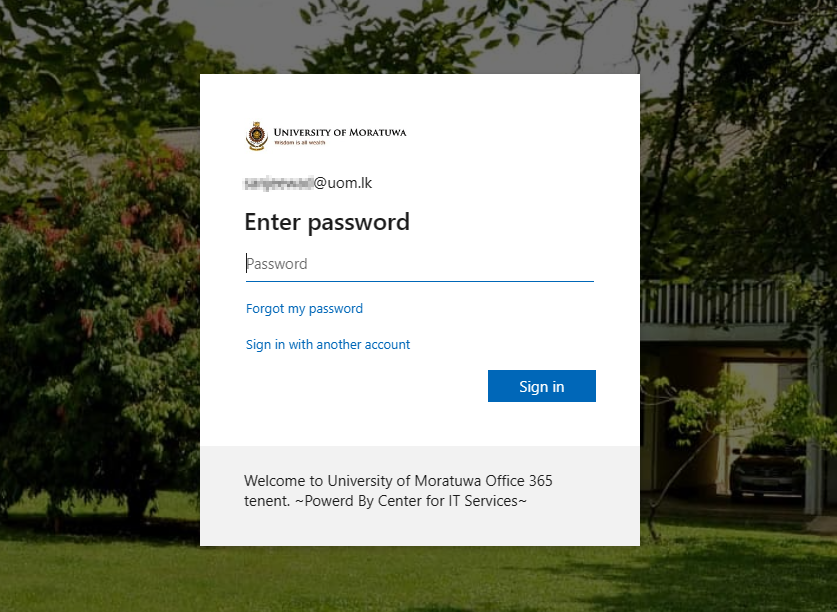
- login to the portal by using your uom email address and the relevant password you have set.
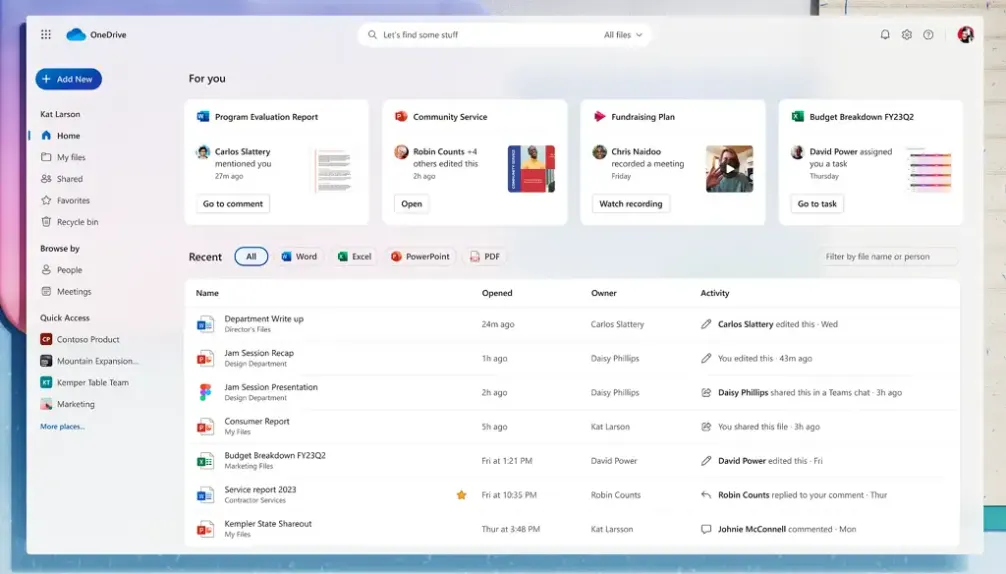
- The Microsoft Office home page is displayed. A listing of the available online apps available to you is revealed. Below is a listing of files you’ve recently accessed in your OneDrive cloud storage.
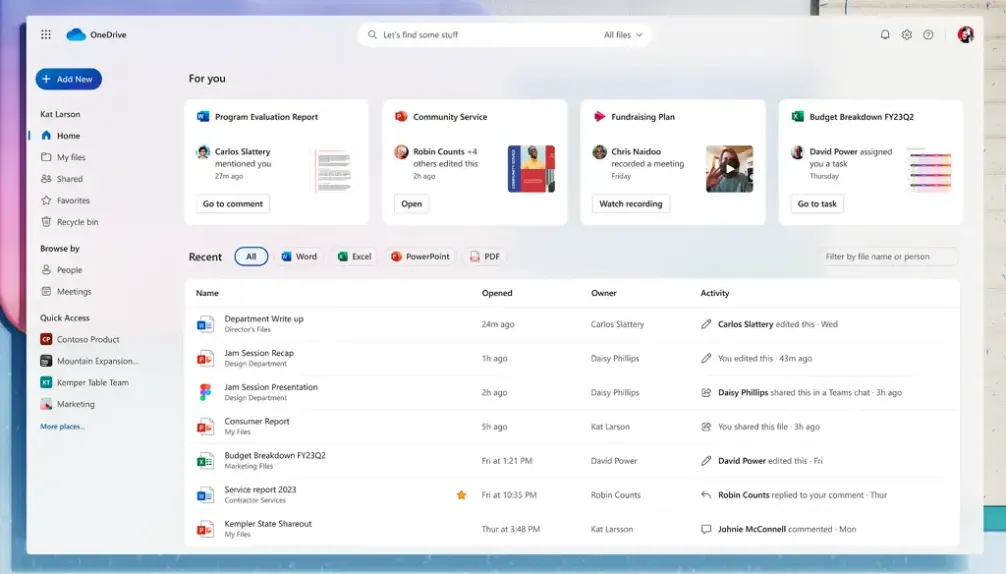
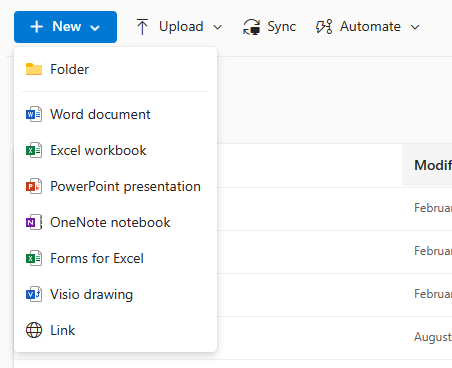
- All new files that are created through Office.com are automatically saved to a user's OneDrive. Users can store over 320+ different file types in OneDrive and upload files up to 250 GB in size. Files and folders can be uploaded directly in the browser once signed into OneDrive:
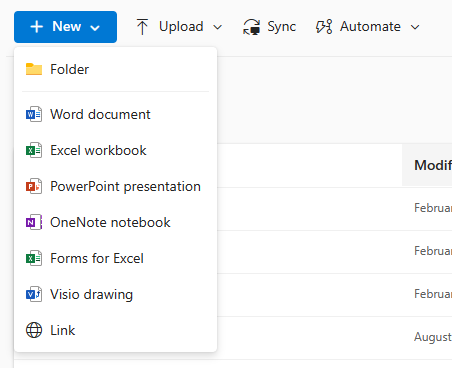
- Click “Upload” near the top of the screen, and then click “Files”.
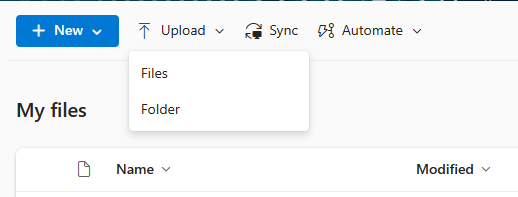
- In the file upload dialog box, navigate to the Downloads folder.
- Select “Library Of Congress.jpg” and click Open.
- Notice how the file has appeared in the content pane.

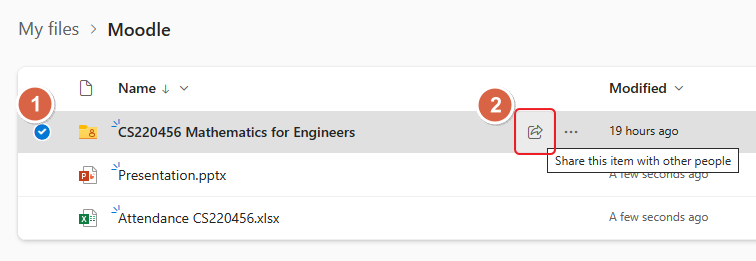
- Also, notice the three blue lines “coming out” of the letter L in the Library. This symbol means that the file has been recently added.
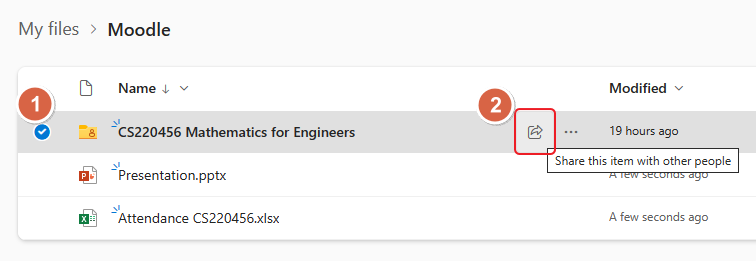
- Select the “CS220456 Mathematics for Engineers” file and click the "Share button".



Click on the pencil drop-down button. Then select the Can view option This is what we want.
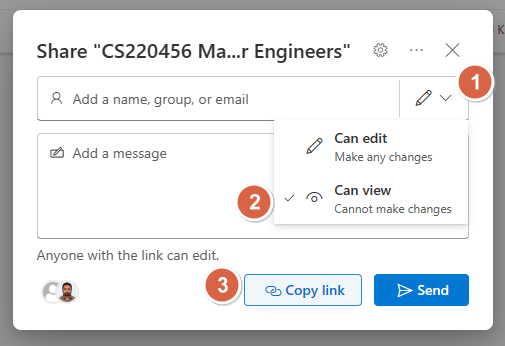
Notice how it is prompting us to enter a name or email address. This is an optional feature that will send an email to whoever we want containing a link to the file. We will not enter any email addresses here because we want to send a public link to our students.
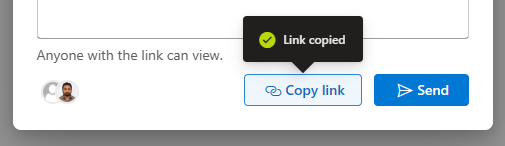
Finally, click "Copy link”.
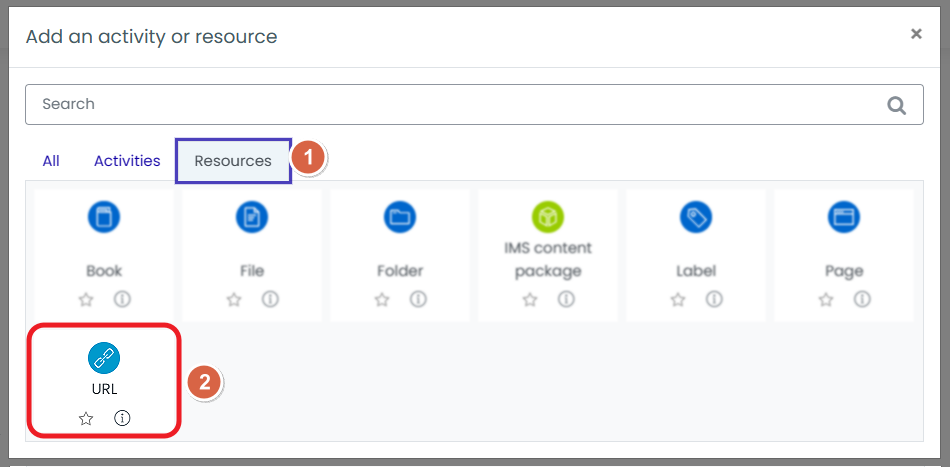
 Select "URL" under the resources tab.
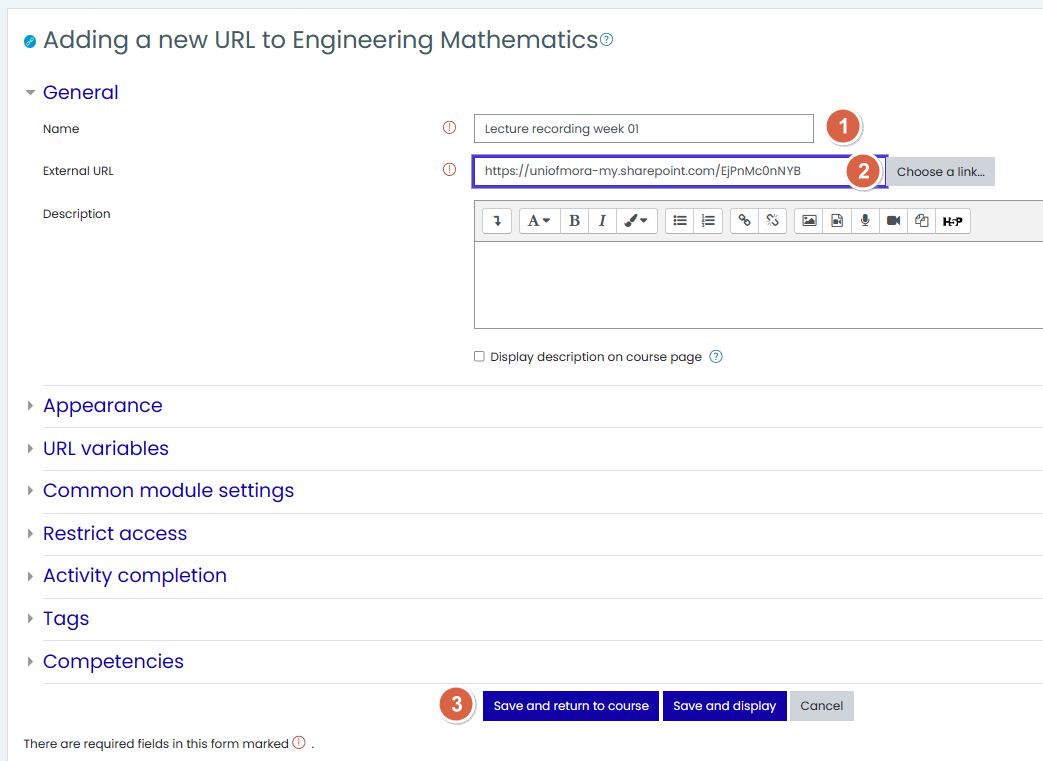
Add the resource by using an appropriate name and the link you have copied under Step 14. Then, save it.
Finally, it will display as follows.
