
Linking MS OneDrive File Uploads
Opening your OneDrive
- Open a web browser.
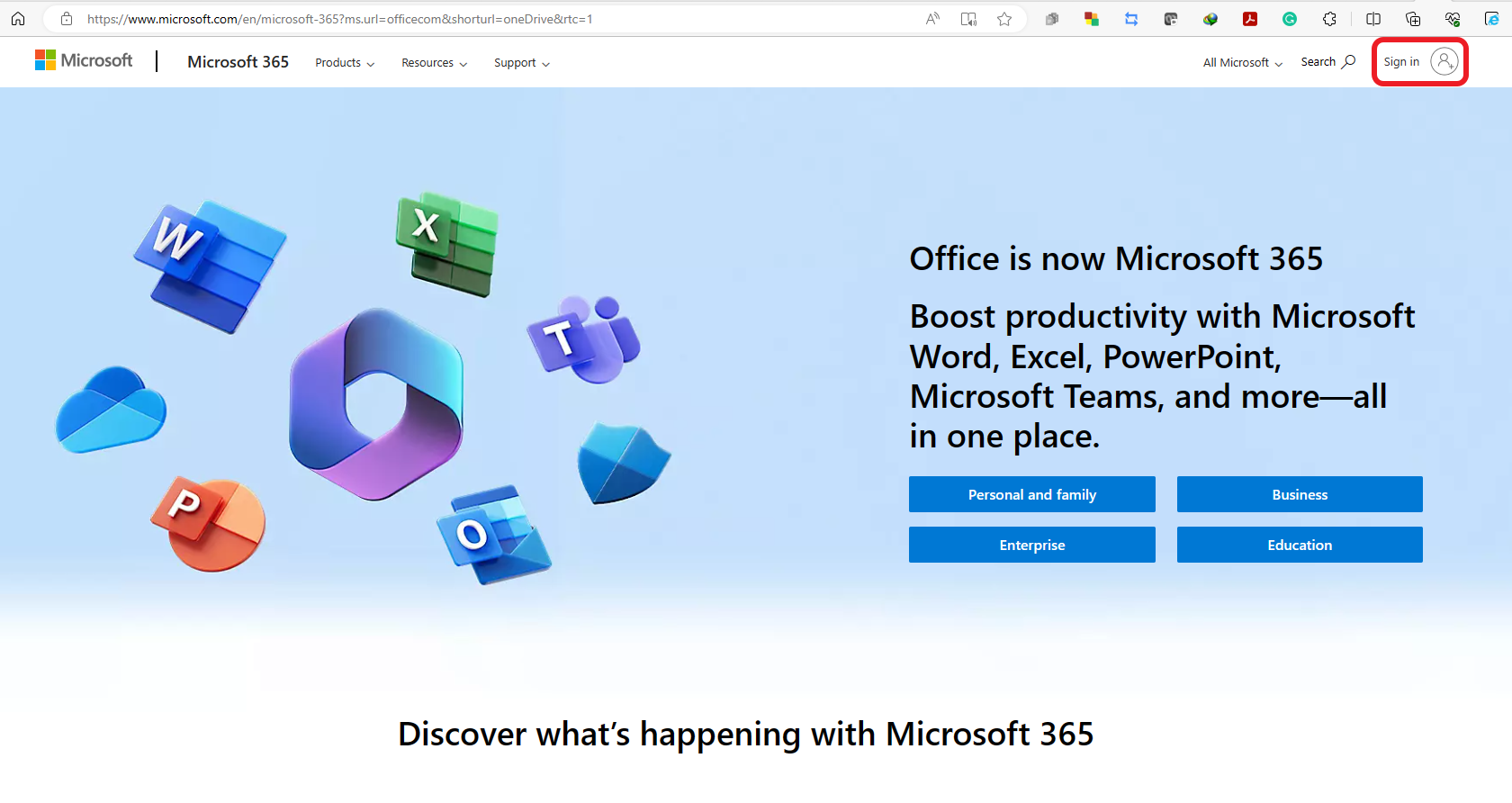
- Navigate to the Microsoft Office homepage: www.office.com
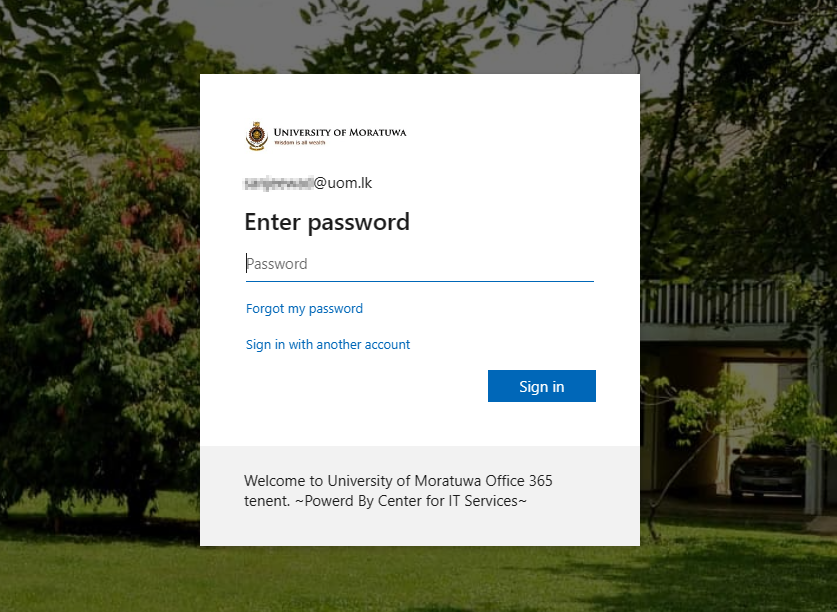
- Click “Sign in” and sign into your Microsoft account.
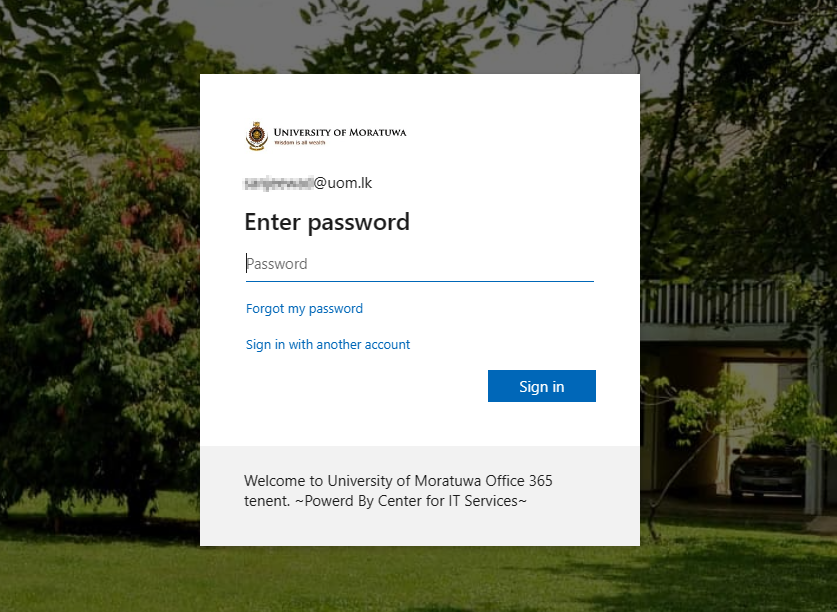
- Login to the portal by using your
uomOfficeemail365addresscredentials.and the relevant passwordIf you haveset.not created Office 365 account yet by using uom email, please visit here.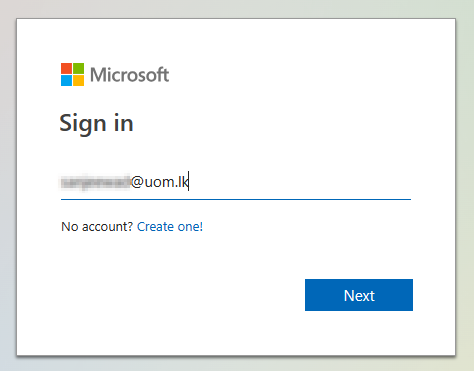
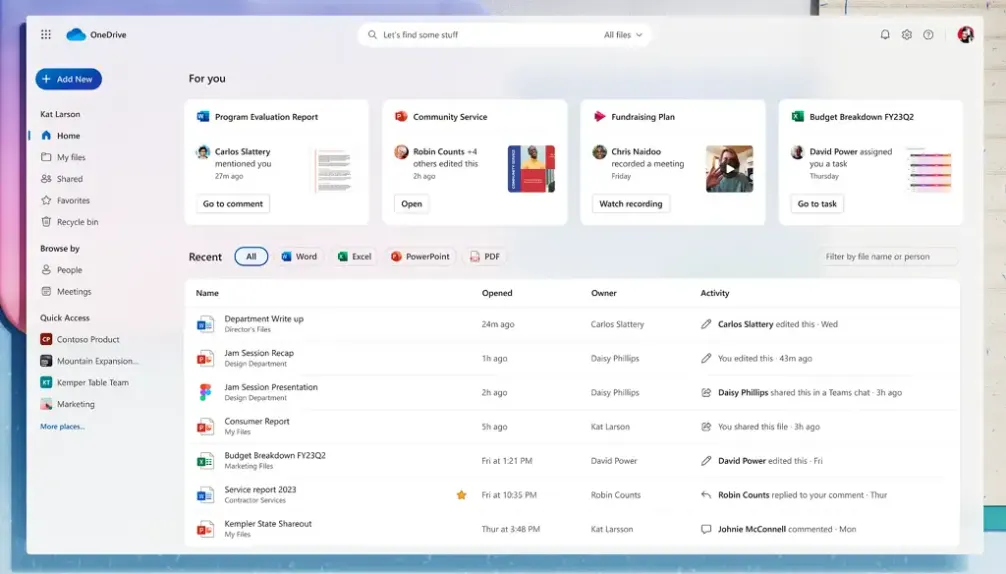
- The Microsoft Office home page is displayed. A listing of the available online apps available to you is revealed. Below is a listing of files you’ve recently accessed in your OneDrive cloud storage.
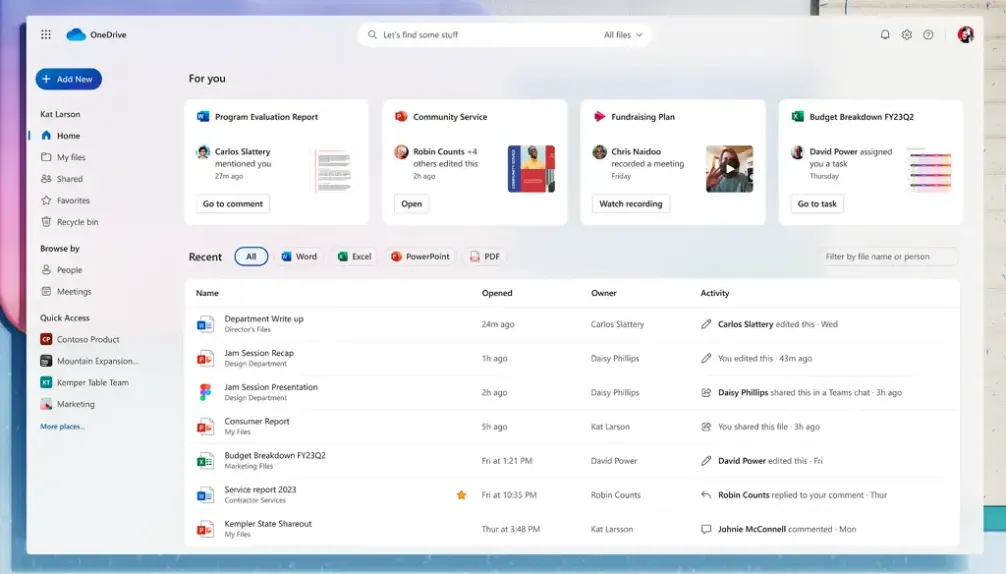
- All new files that are created through Office.com are automatically saved to a user's OneDrive. Users can store over 320+ different file types in OneDrive. Files and folders can be uploaded directly in the browser once signed into OneDrive
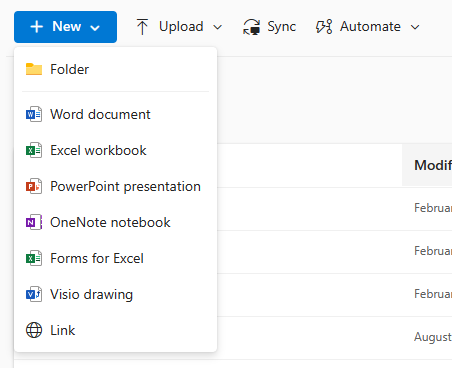
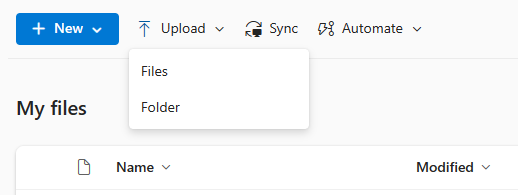
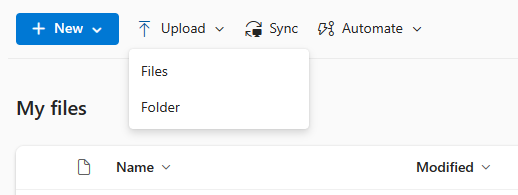
- Click “Upload” near the top of the screen, and then click “Files”
.or "Folder" to upload the contents.
(You can also do the same task by dragging and dropping).

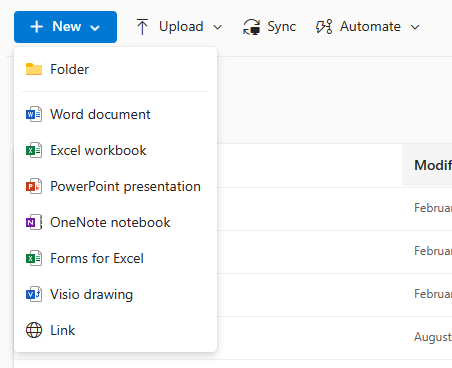
Select

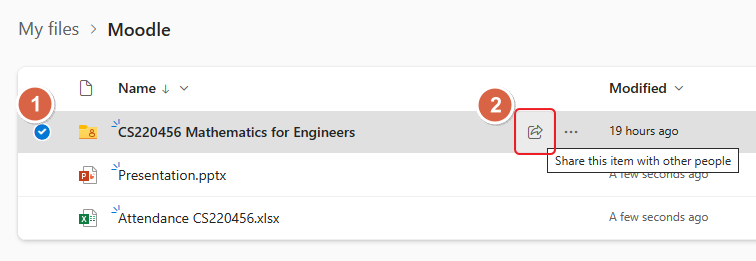
Click on the pencil drop-down button. Then select the Can view option This is what we want.
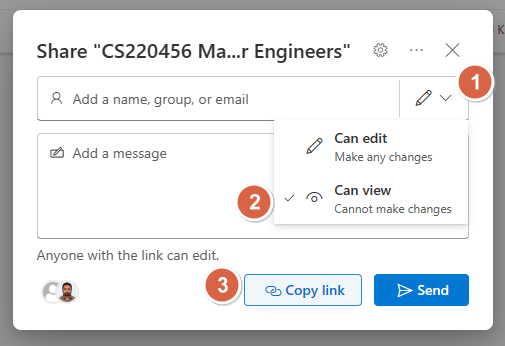
Notice how it is prompting us to enter a name or email address. This is an optional feature that will send an email to whoever we want containing a link to the file. We will not enter any email addresses here because we want to send a public link to our students.
Finally, click "Copy link”.
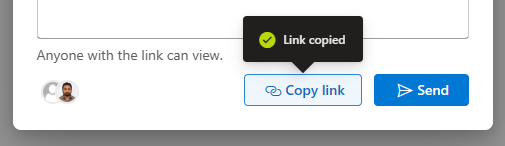
- Applies sharing permissions to the file. The sharing permissions state that anyone who knows the link to the file can view and edit it.
- Copies the link to the file to the clipboard so you can paste it somewhere.
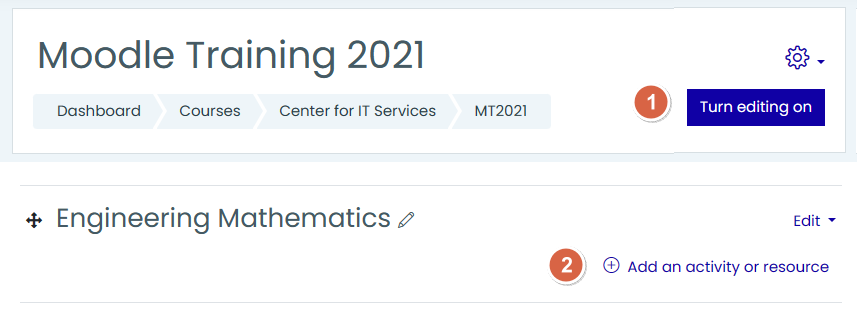
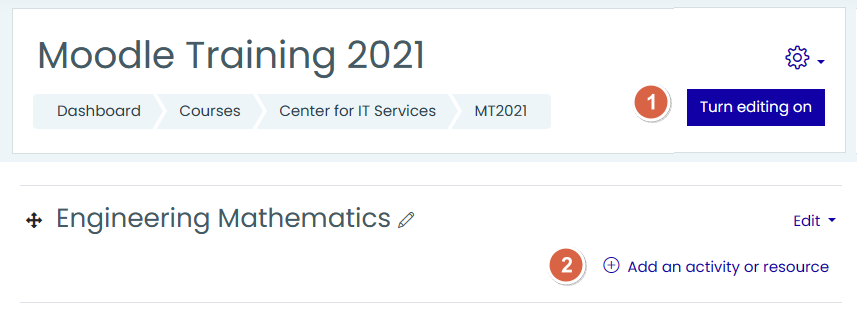
- First, "turn editing on" in your Moodle course.
- Then, "Add an activity or resource".
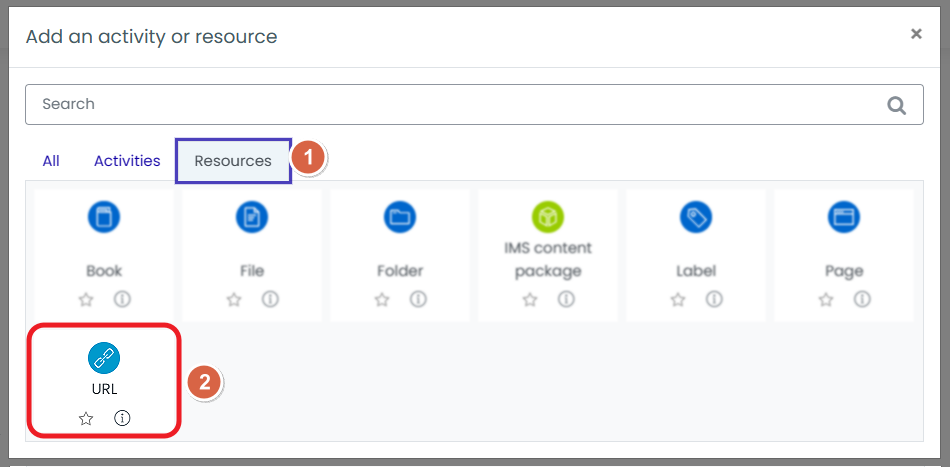
Add the resource by using an appropriate name and the link you have copied under Step 14. Then, save it.
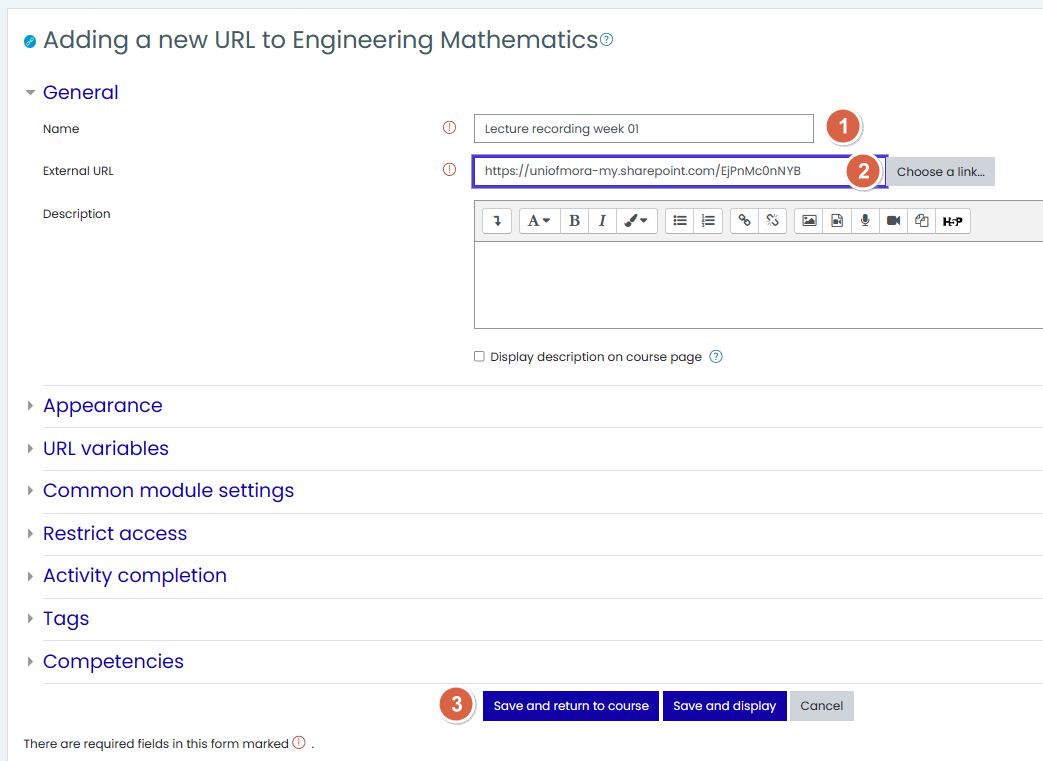
Finally, it will display as follows.
