# Zoom (LEARN) User Guide
# How to set Join Before Host Setting
Initially, do the following (this is a one-time setting),
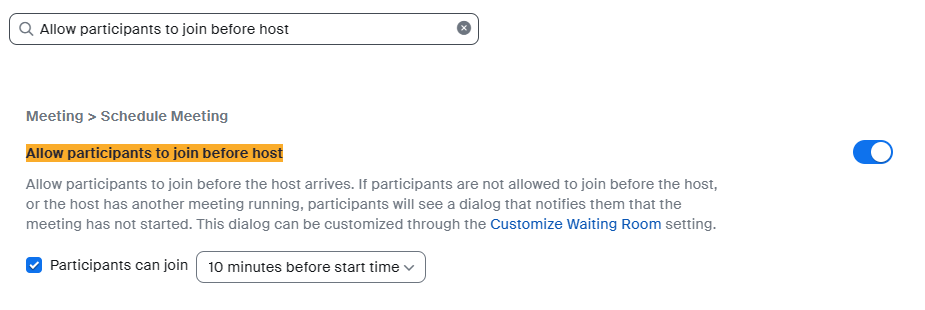
1. Go to settings and search for `Allow participants to join before host` in the search box.
2. Turn on the settling.
3. Check the`Participants can join` check box.
4. Set the desired time by selecting it from the dropdown. It's recommended to keep the time either `5 minutes before start time` or `10 minutes before start time`. Do not set it to`anytime`.
[](https://wiki.uom.lk/uploads/images/gallery/2024-01/vlDEj5HLVyZ3yd9N-image.png)
Check the settings below every time you schedule a meeting.
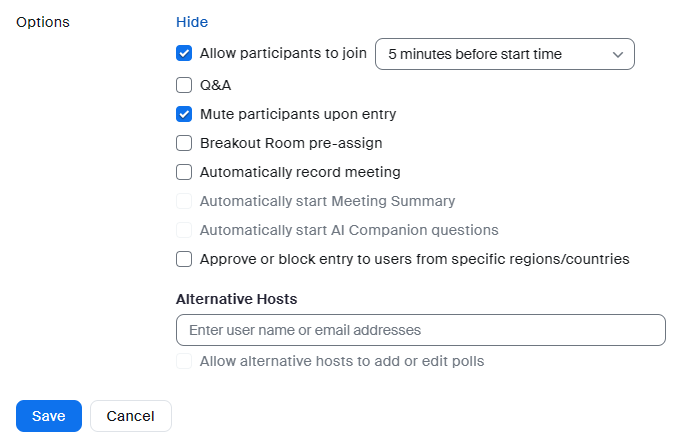
1. Scroll down until you find `Options`
2. Click `Show`
3. See if the `Allow participants to join` check box is checked. If not, check it.
4. Adjust the time if needed.
[](https://wiki.uom.lk/uploads/images/gallery/2024-01/Dp8EXOvChYA4kGrr-image.png)
# How to Find the Host Key in Zoom
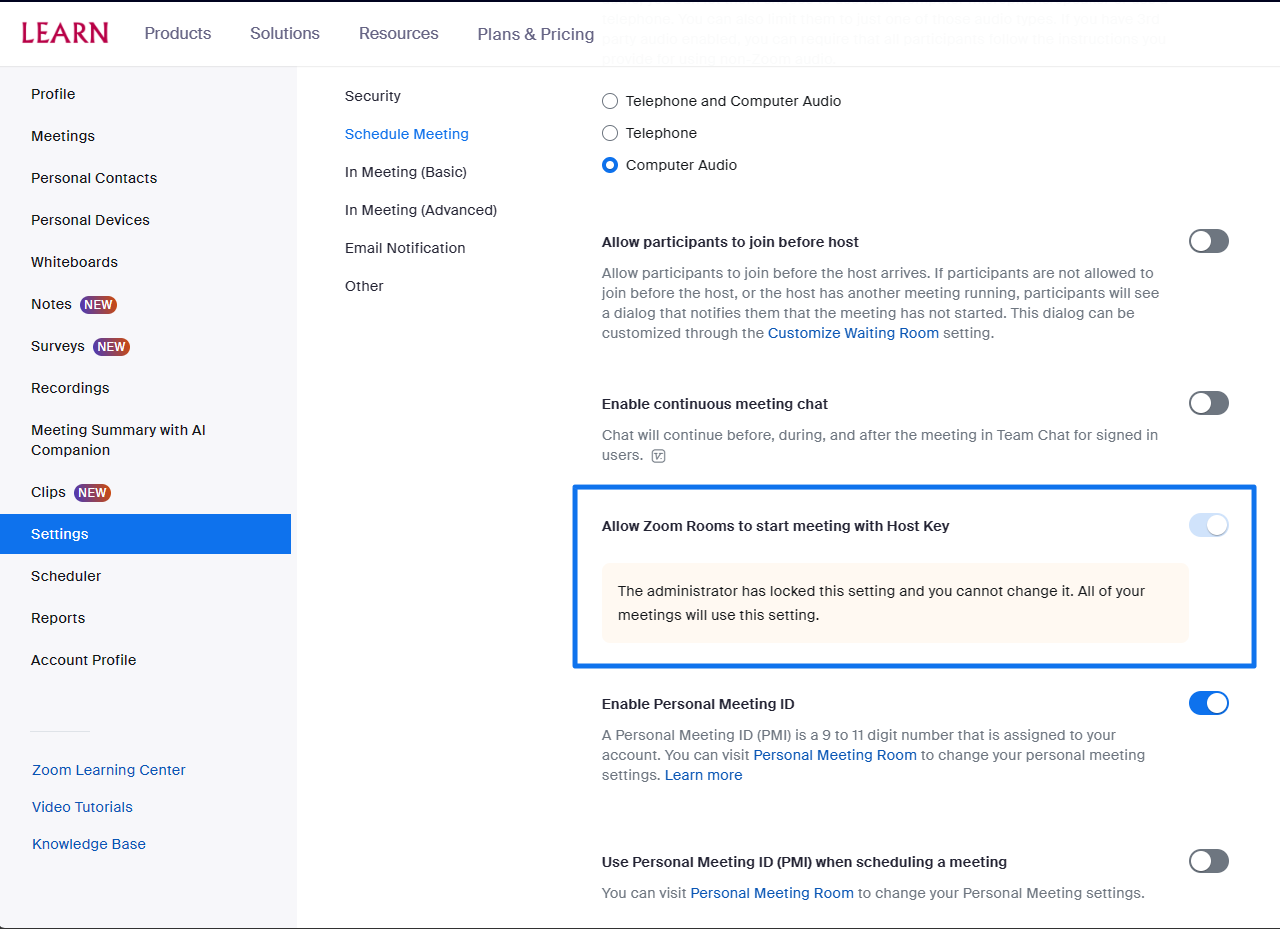
- [Login](https://uom.lk/cites/services/How-to-login-to-zoom) to zoom. Make sure the "Allow Zoom to start meeting with Host Key" setting is turned on by going to settings. It should be enabled and locked.
[](https://wiki.uom.lk/uploads/images/gallery/2023-12/s2QXDKXSlsGqN7SR-image.png)
- Select Profile Find the host key and note it down, or if you prefer, change it by clicking Edit.
[](https://wiki.uom.lk/uploads/images/gallery/2023-12/ZQNKPMC9WYprmxkj-image.png)
- After the [Meeting is scheduled](https://ws.learn.ac.lk/wiki/ZoomInstWorkshops/zoomguide/createmeeting), share the host key with the person who needs to obtain the host role for your meeting.
Note: Make sure not to enable the "Waiting Room" option while creating the meeting.
- It is strongly recommended that the host key be changed frequently. to avert unforeseen events.
- Also, make sure to enable "[Join Before Host Setting](https://wiki.uom.lk/books/zoom-learn-user-guide/page/how-to-set-join-before-host-setting)" to use this feature on the meetings created under your account.
# How to Use the Host Key to Claim Host Role in Zoom
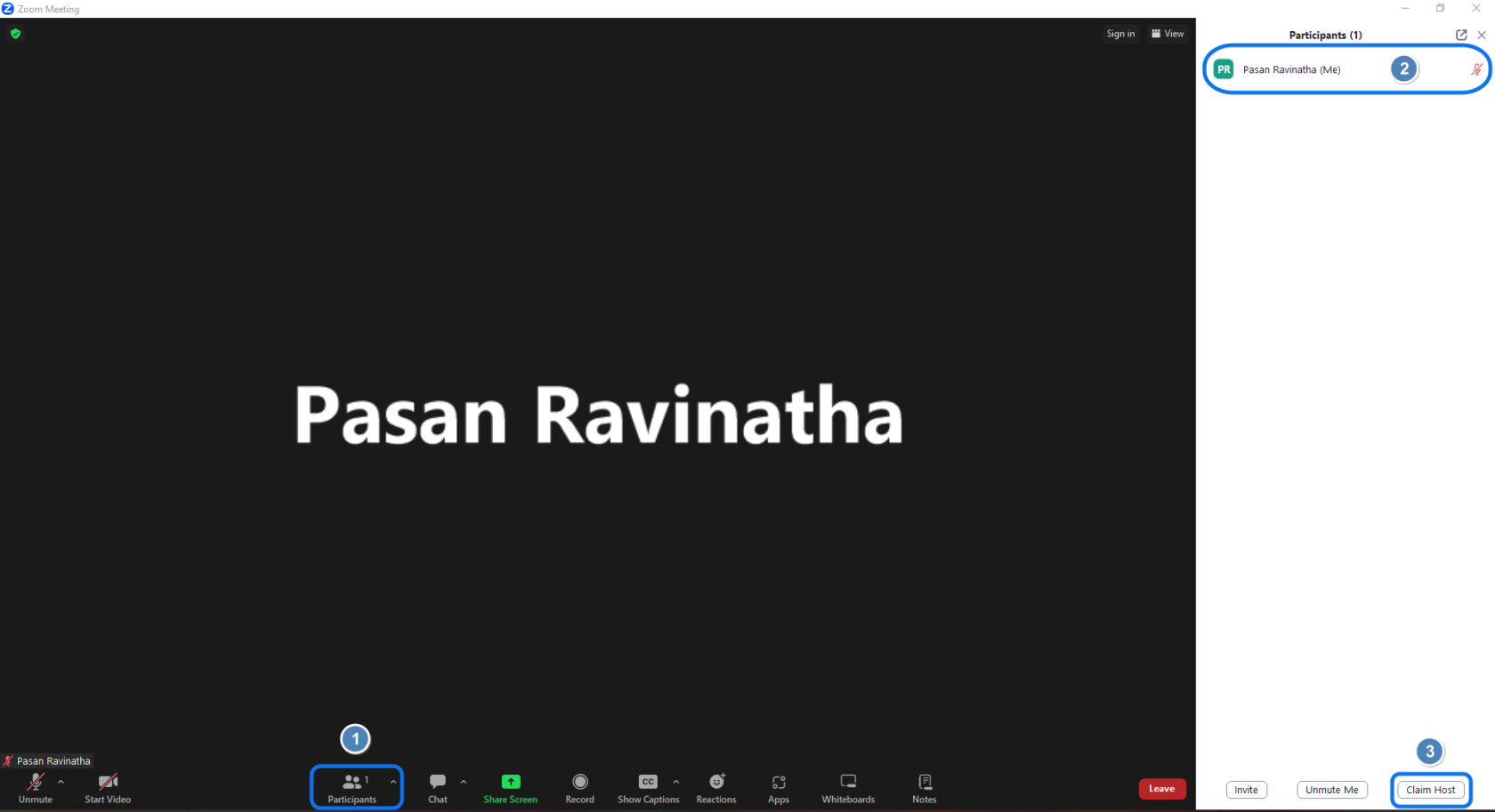
[Join](https://ws.learn.ac.lk/wiki/ZoomInstWorkshops/zoomguide/joinmeeting) the Zoom meeting. Click on Participants1, Check if you have the host role 2. If not, click on the Claim Host button 3.
[](https://wiki.uom.lk/uploads/images/gallery/2023-12/rdjkw3OKMBcAOcj9-image.png)
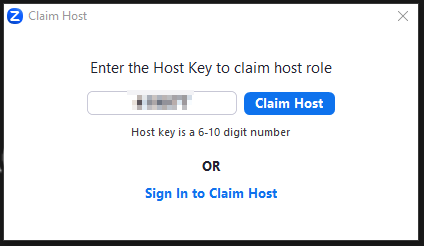
Then enter the Host Key and click on Claim Host.
[](https://wiki.uom.lk/uploads/images/gallery/2023-12/AketZqEAwJy5vMag-image.png)
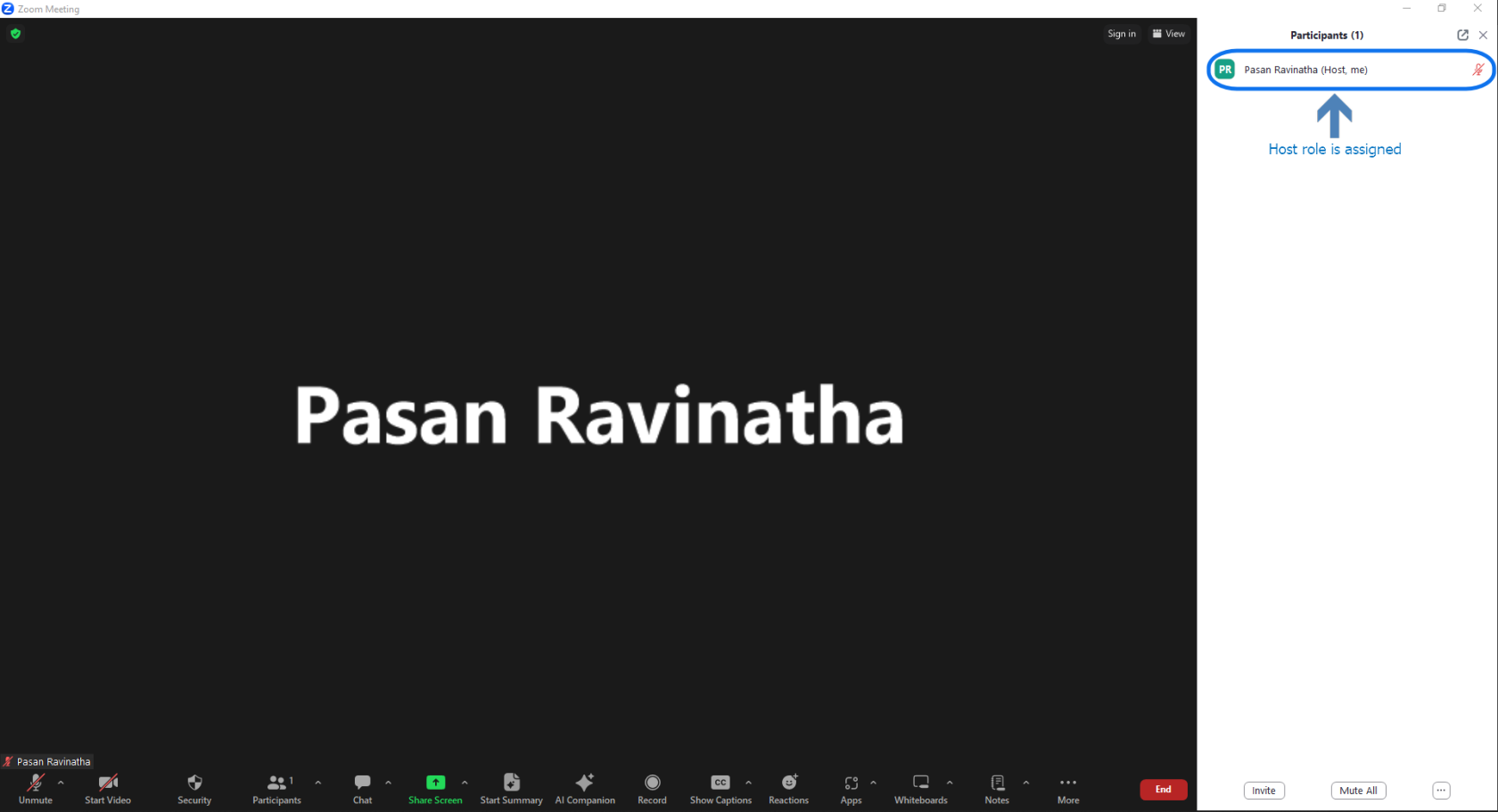
Check if you have the host role assigned.
[](https://wiki.uom.lk/uploads/images/gallery/2023-12/i80nrvXBYJwu4dXS-image.png)