# Instructions
### UoM webmail is blocked in other countries for security reasons. To access webmail you must add it to Gmail for the time being.
**If you’re importing UoM email, Go ahead and try the steps below after you login to your Gmail account,**
1\. At the top right, click the **gear** .
2\. Select **Settings**.
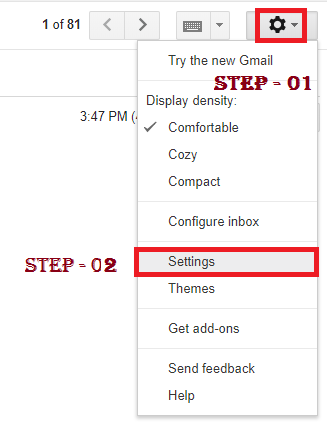
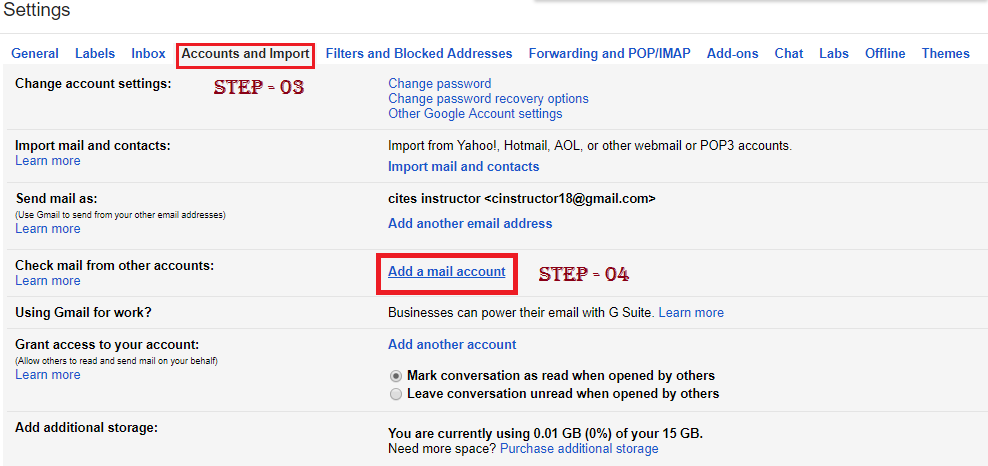
3\. Select the **Accounts and Import** **tab.**
4\. In the **"Check mail from other accounts "** section, click Add a mail account.
****
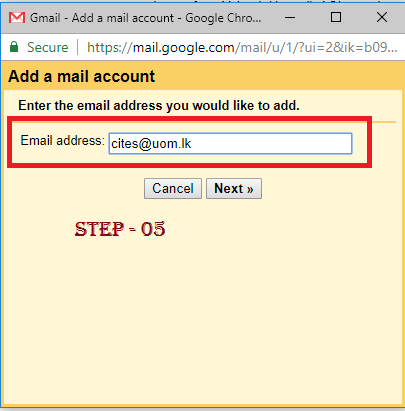
5.Enter **YOUR full UOM email address ( Eg: tharangak@uom.lk)** , then click Next Step.
***\*\* Please note that here we have used the cites@uom.lk email only for the screen cast purpose. Use your own UOM mail address instead.***
****
6\. Select **import emails from my other account (POP3)** and click **"next".**
****
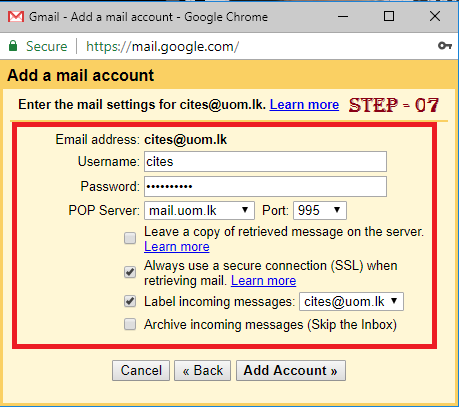
7\. Enter **your password.** Now you have a few options to choose from. Here’s our recommended settings:
**Always use a secure connection (SSL) when retrieving mail**
**Label incoming messages -** Check the box if you’d like to easily see which emails in your inbox came from this account.
**Click Add Account.**
****
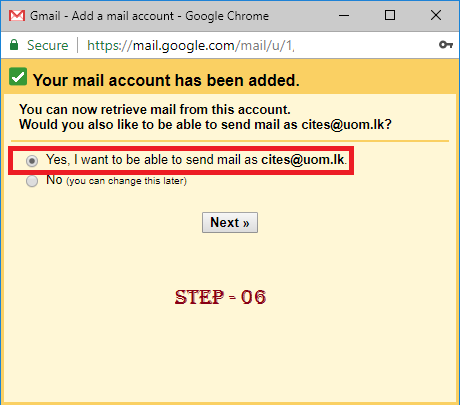
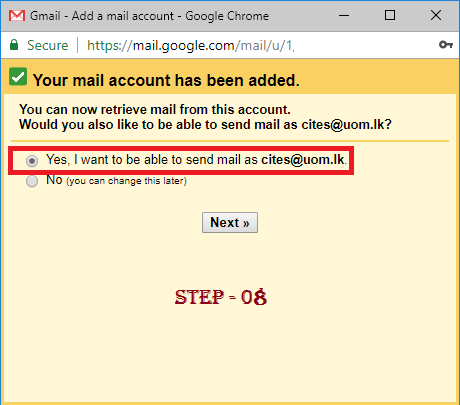
8\. Once your account has been added successfully, you'll be asked if you want to be able to send mail as this address. Select **'Yes'** and Click **'Next Step'.**
****
9\. Enter your Name that should be appeared in the email and check **'Treat as an alias'**. Click **'Next Step'.**
**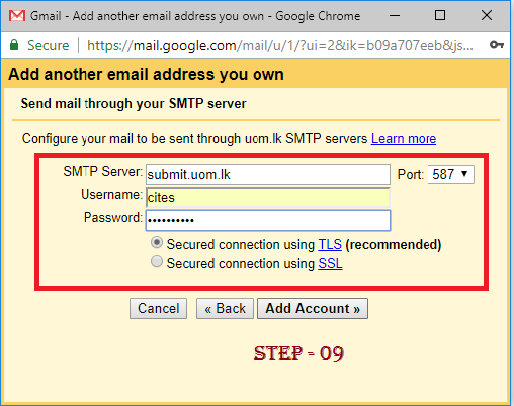**
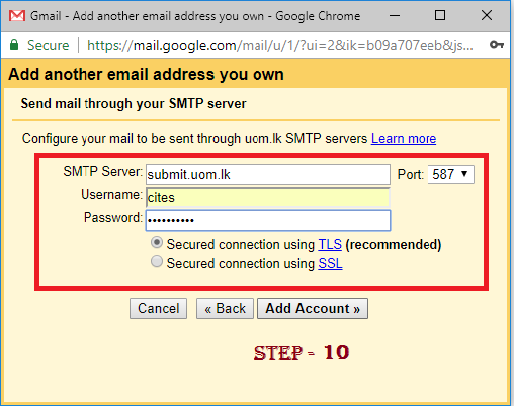
**10. Enter the SMTP server - submit.uom.lk, Port - 587, your UoM username, and your password for that account. Select 'Secured connection using TLS' and then click 'Add Account'.**
****
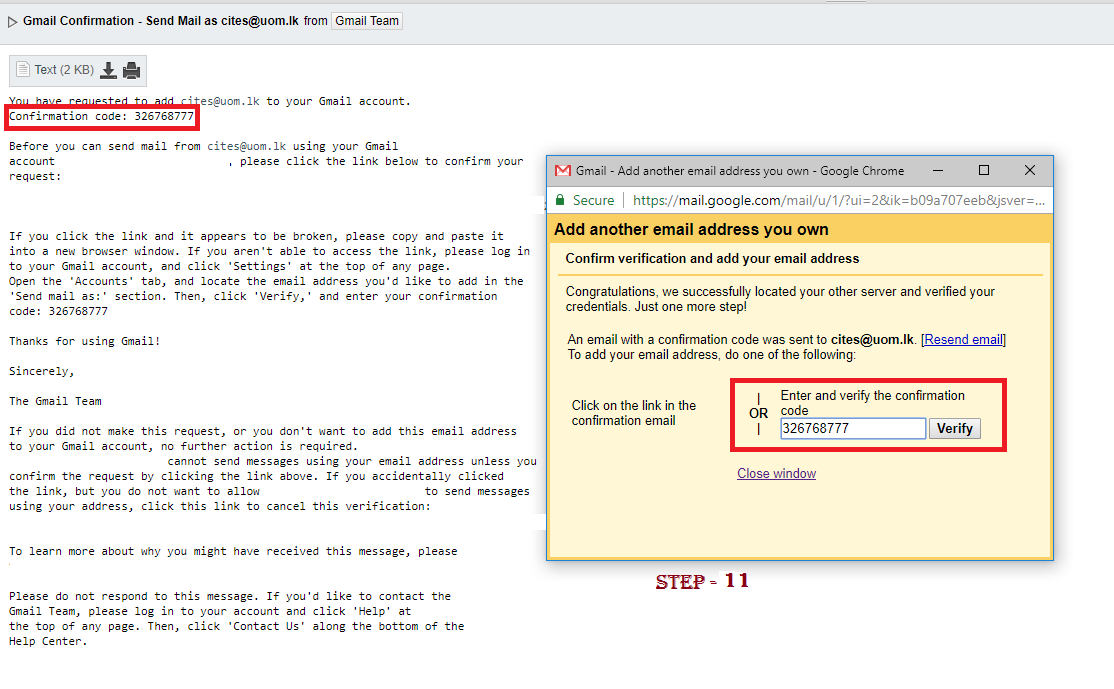
**11.** Now Login to your UOM email from browser via **[webmail.mrt.ac.lk](https://webmail.mrt.ac.lk/)** and **copy the verification code** sent to you and paste it in the text box asking for it in the next pop up window or else you also can **click the link sent to your UOM mail to confirm the request.**
****
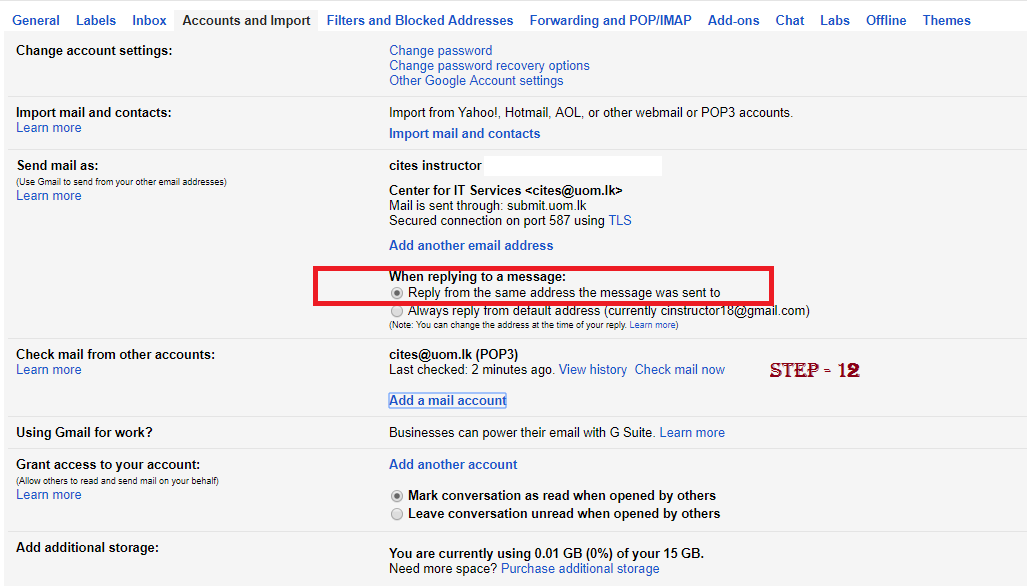
12\. Select **Reply from the same address the message was sent to on When replying to a message under send mail as:**
****