# How to login to your @mail.uom.ac.lk email

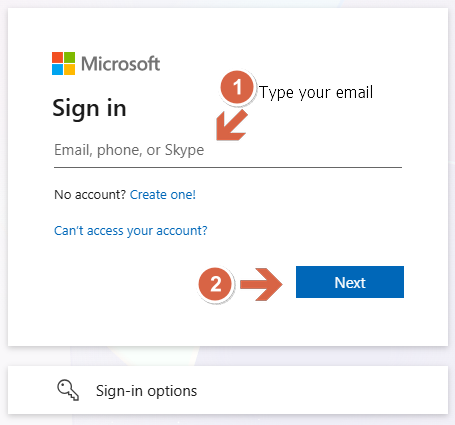
<p class="callout info">**visit [outlook.com](https://outlook.com) click sign in you will be redirected to the Microsoft login page.**</p>

[![image.png](https://wiki.uom.lk/uploads/images/gallery/2026-10/scaled-1680-/NqtlBVOjtcYLyzSs-image.png)](https://wiki.uom.lk/uploads/images/gallery/2026-10/NqtlBVOjtcYLyzSs-image.png)

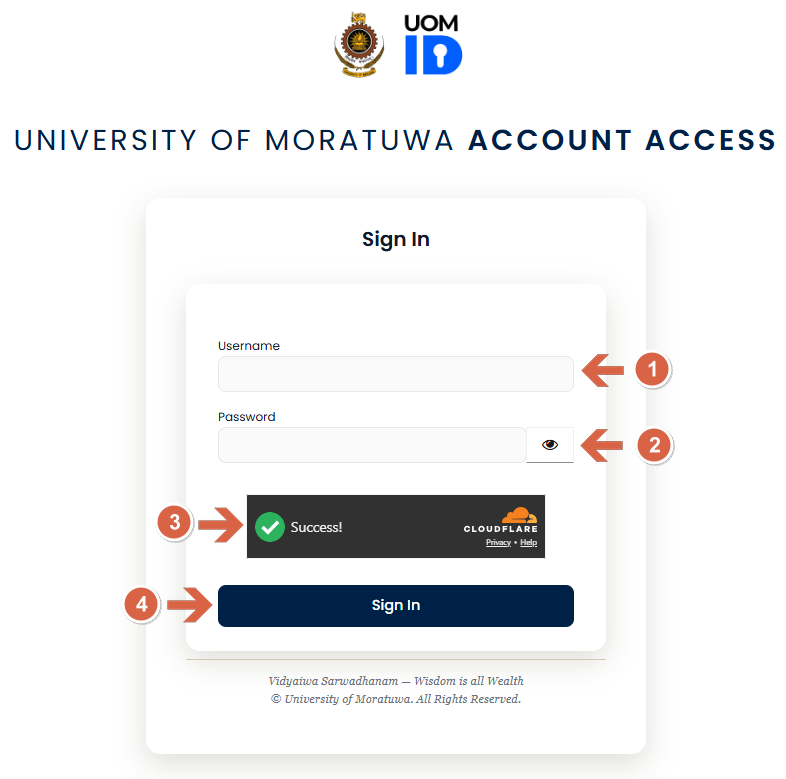
<p class="callout info">**Once you click next you will be redirected to UoM ID (UoM SSO Portal)**</p>

<p class="callout warning">**Make sure the URL is auth.uom.ac.lk of the portal.**</p>

[![image.png](https://wiki.uom.lk/uploads/images/gallery/2026-10/scaled-1680-/3tyOi43hH1opUiYw-image.png)](https://wiki.uom.lk/uploads/images/gallery/2026-10/3tyOi43hH1opUiYw-image.png)

<p class="callout info">Provide your login credentials  
 1. Your username: If your email is <johndoe@mail.uom.ac.lk> your username will be johndoe  
 2. Password: Your UoM account password  
 3. Wait until you see the green ✅ before clicking Sign in. If not automatically visible, click the checkbox and wait until the success message appears.  
 4. Click Sign In. You will be redirected to the OTP page</p>

<p class="callout warning">**If you are logging in for the first time read the following article first before proceeding further** **[CLICK HERE TO READ](https://wiki.uom.lk/books/undergraduate-instructions/chapter/2first-login "First Login")**</p>

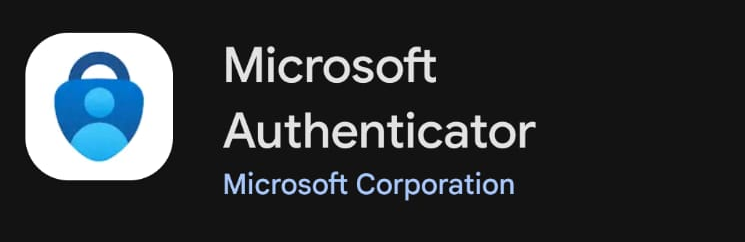
<p class="callout info">Open the Microsoft Authenticator App in your smart phone  
</p>

[![image.png](https://wiki.uom.lk/uploads/images/gallery/2026-10/scaled-1680-/VtYeDL8xxoRKzQXN-image.png)](https://wiki.uom.lk/uploads/images/gallery/2026-10/VtYeDL8xxoRKzQXN-image.png)

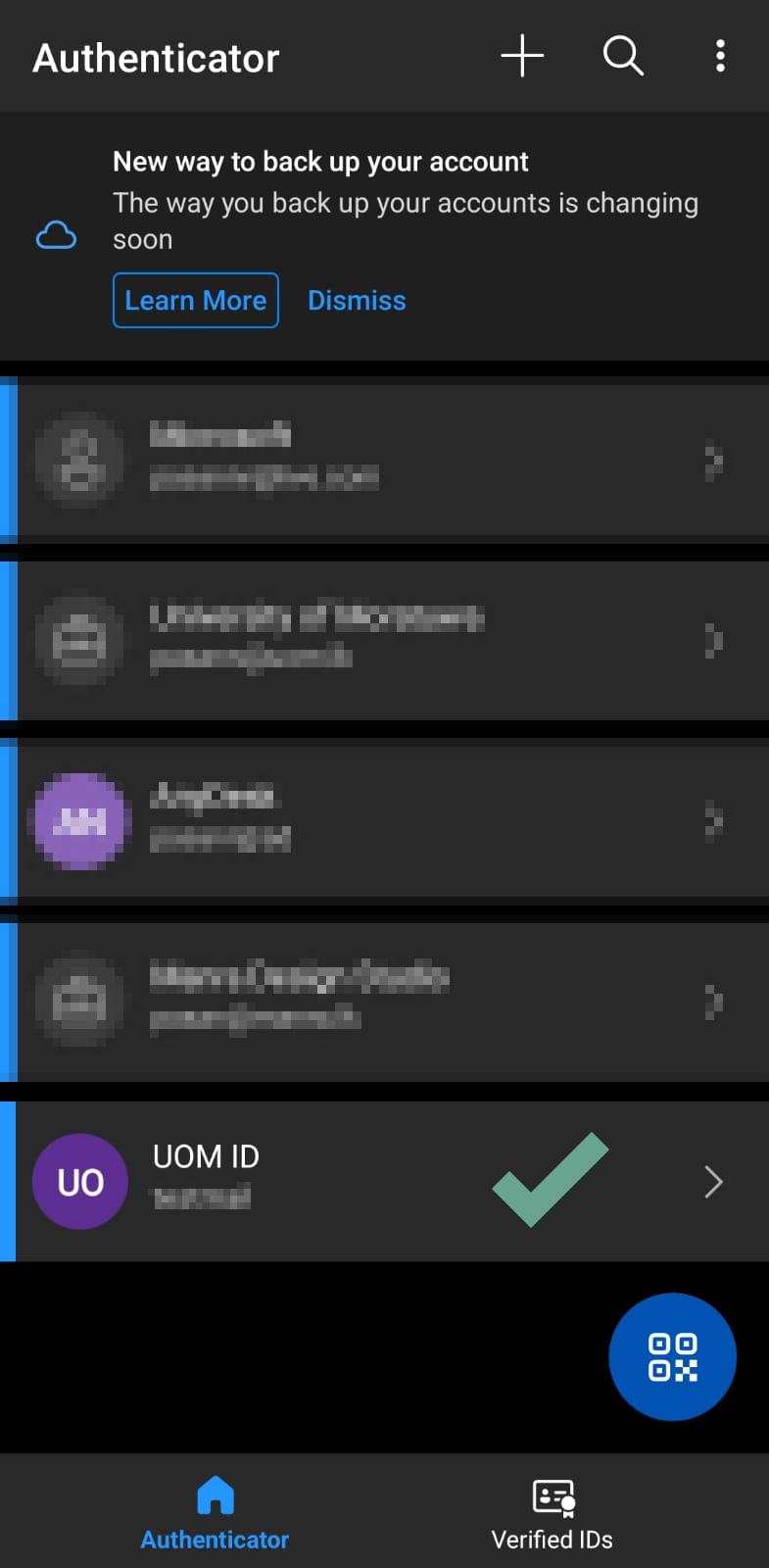
<p class="callout info">Once you open the App you will see a card named "UOM ID" tap on that</p>

[![image.png](https://wiki.uom.lk/uploads/images/gallery/2026-10/scaled-1680-/sGEdhQ7389XGsXDX-image.png)](https://wiki.uom.lk/uploads/images/gallery/2026-10/sGEdhQ7389XGsXDX-image.png)

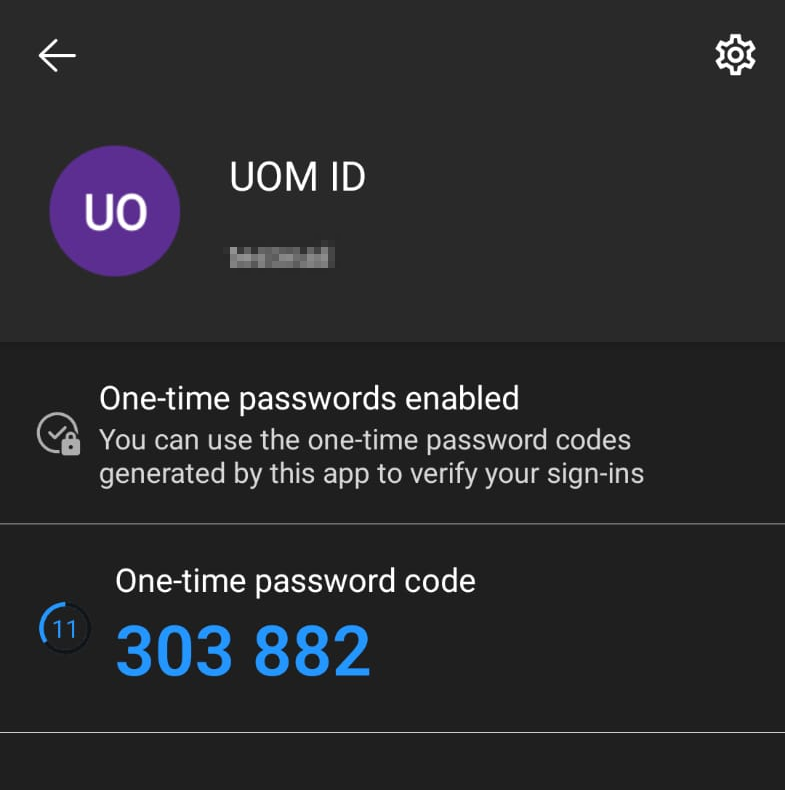
<p class="callout info">Now you will see the one-time code here</p>

[![image.png](https://wiki.uom.lk/uploads/images/gallery/2026-10/scaled-1680-/JS9AVorp6YhjXPSy-image.png)](https://wiki.uom.lk/uploads/images/gallery/2026-10/JS9AVorp6YhjXPSy-image.png)
![image.png](https://wiki.uom.lk/uploads/images/gallery/2026-10/scaled-1680-/MBETE7mASYaNVruT-image.png)

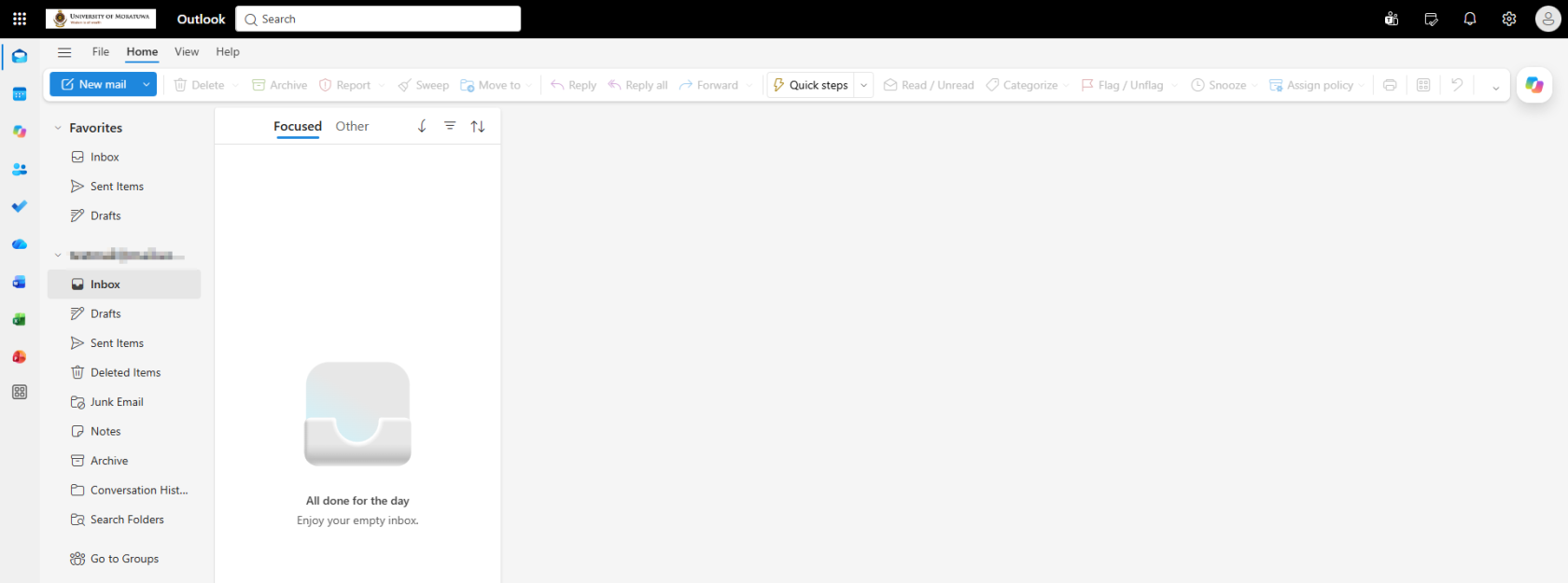
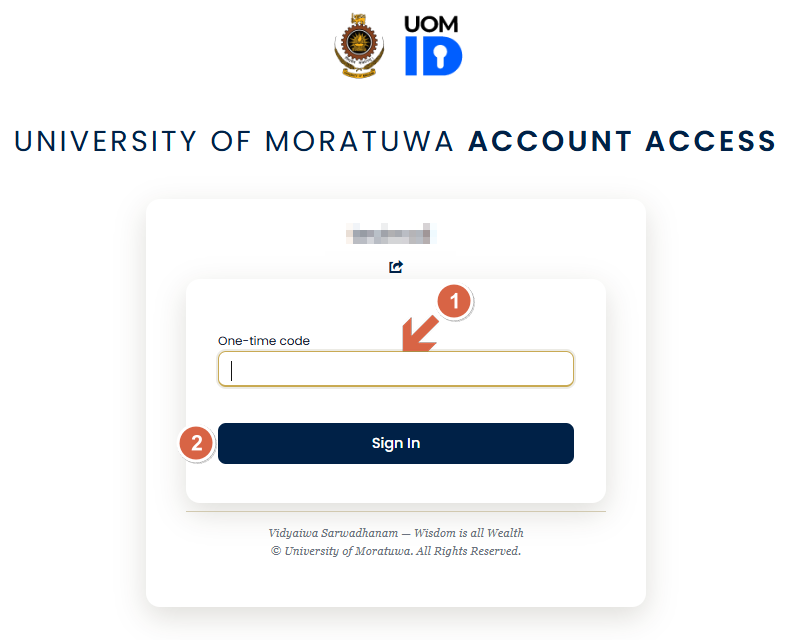
<p class="callout info">Enter the onetime code that shows in the MS Authenticator app (1) and then click Sign In (2) (Note: the code will change every 30 seconds) After a successful login you can access your mail.</p>

[![image.png](https://wiki.uom.lk/uploads/images/gallery/2026-10/scaled-1680-/2CgFNMP1rAXBu94d-image.png)](https://wiki.uom.lk/uploads/images/gallery/2026-10/2CgFNMP1rAXBu94d-image.png)