Undergraduate Instructions
This set of instructions are for students after batch 26.
Table of contents
1. Email Access
How to login to your @mail.uom.ac.lk email
visit outlook.com click sign in you will be redirected to the Microsoft login page.
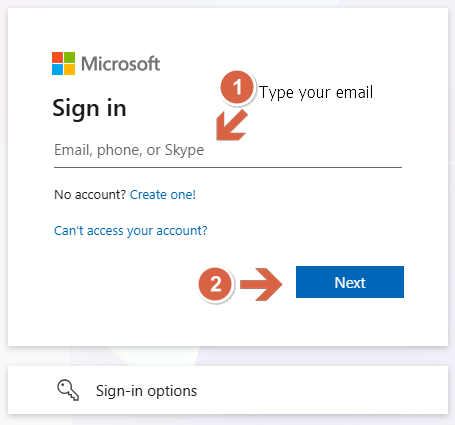
Once you click next you will be redirected to UoM ID (UoM SSO Portal)
Make sure the URL is auth.uom.ac.lk of the portal.
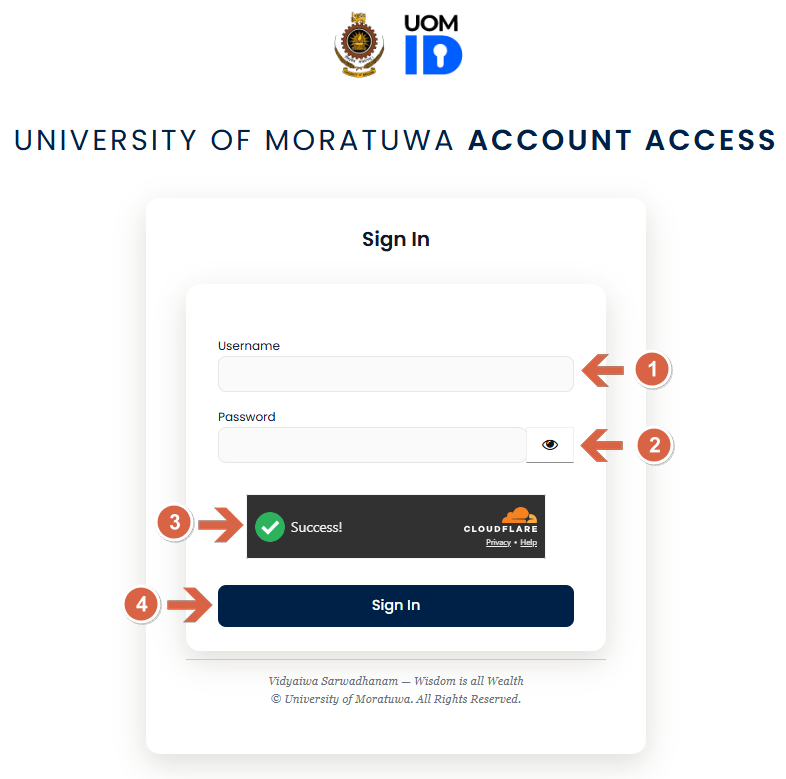
Provide your login credentials
1. Your username: If your email is johndoe@mail.uom.ac.lk your username will be johndoe
2. Password: Your UoM account password
3. Wait until you see the green ✅ before clicking Sign in. If not automatically visible, click the checkbox and wait until the success message appears.
4. Click Sign In. You will be redirected to the OTP page
If you are logging in for the first time read the following article first before proceeding further CLICK HERE TO READ
Open the Microsoft Authenticator App in your smart phone
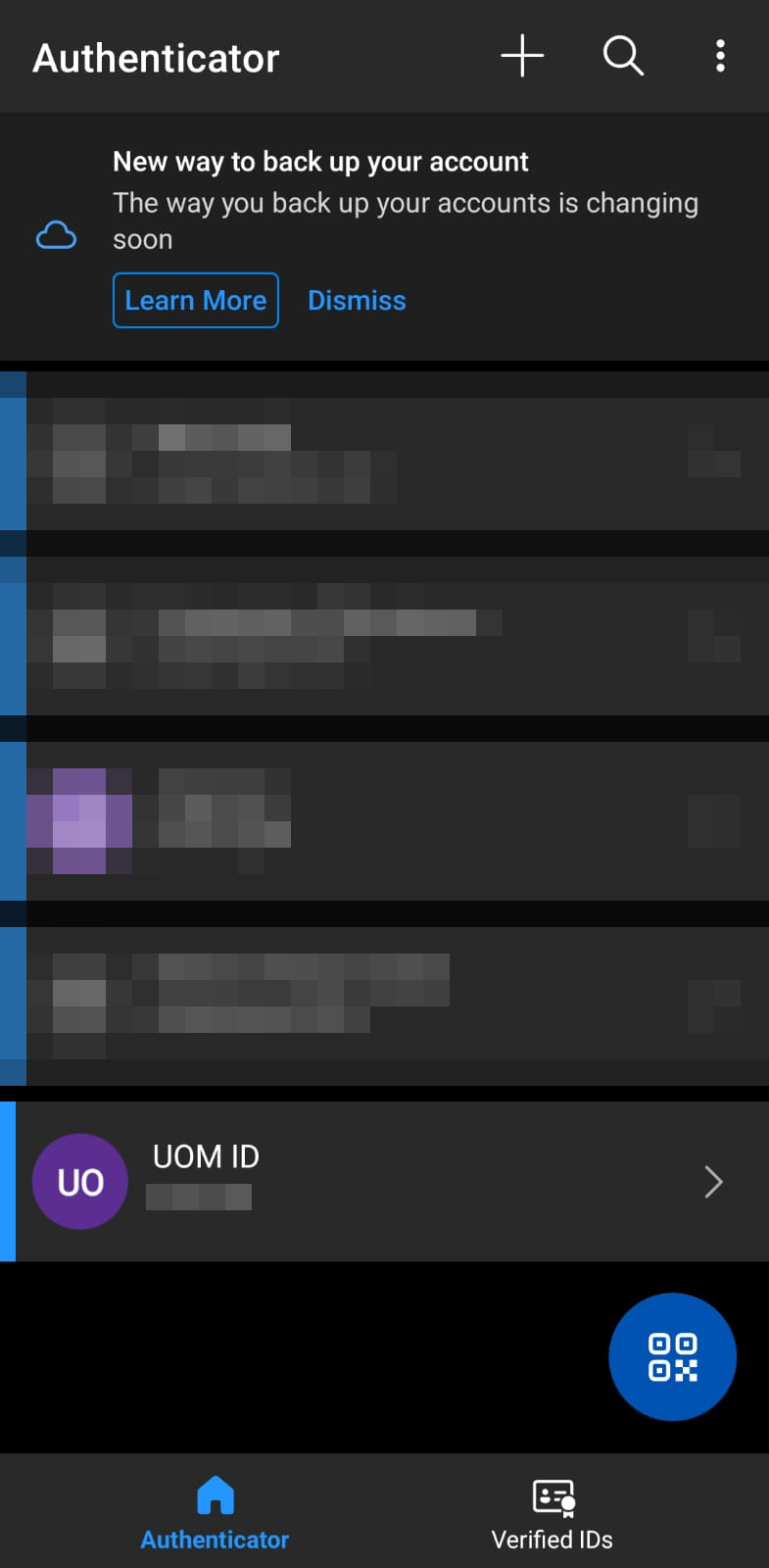
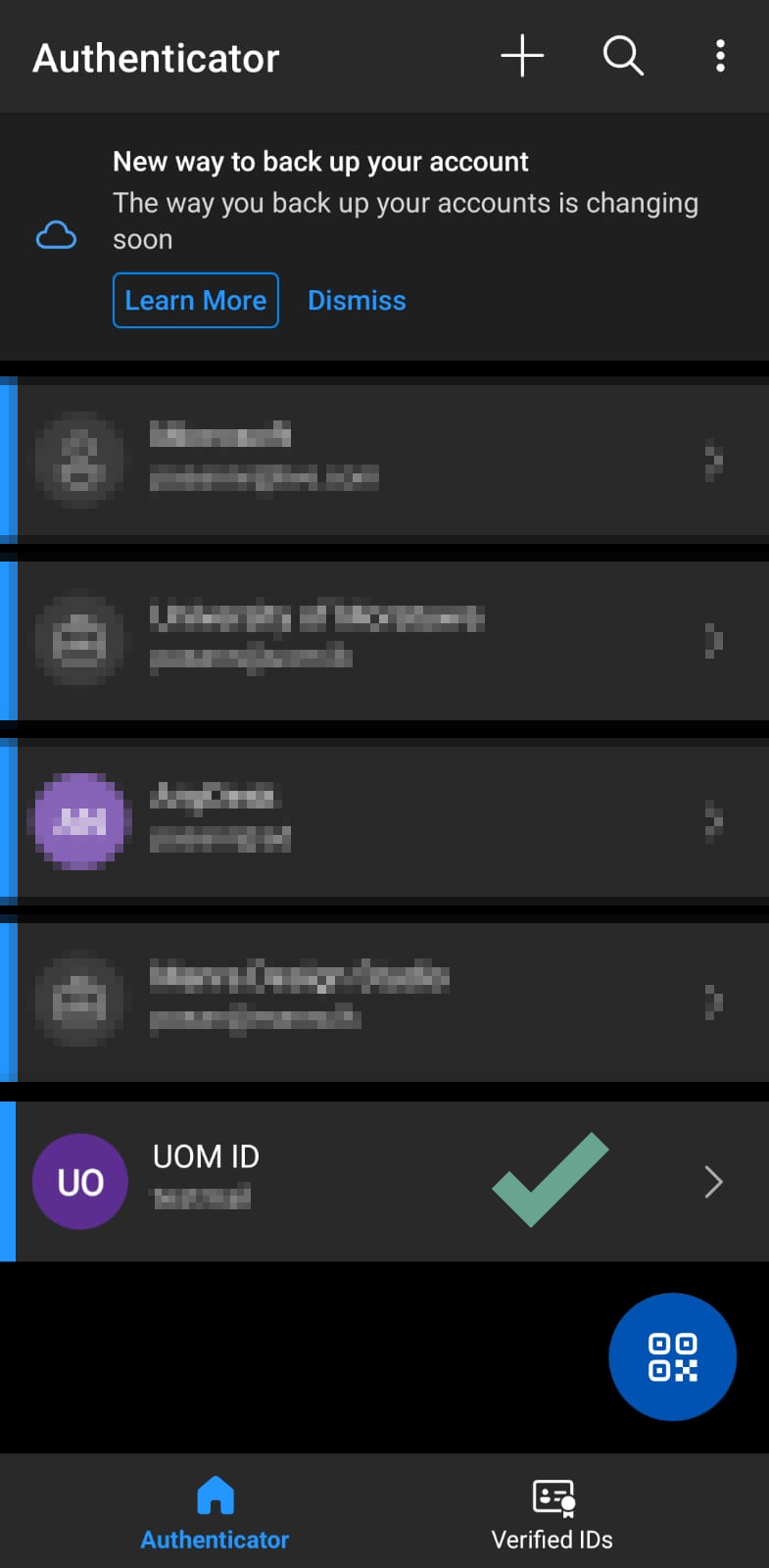
Once you open the App you will see a card named "UOM ID" tap on that
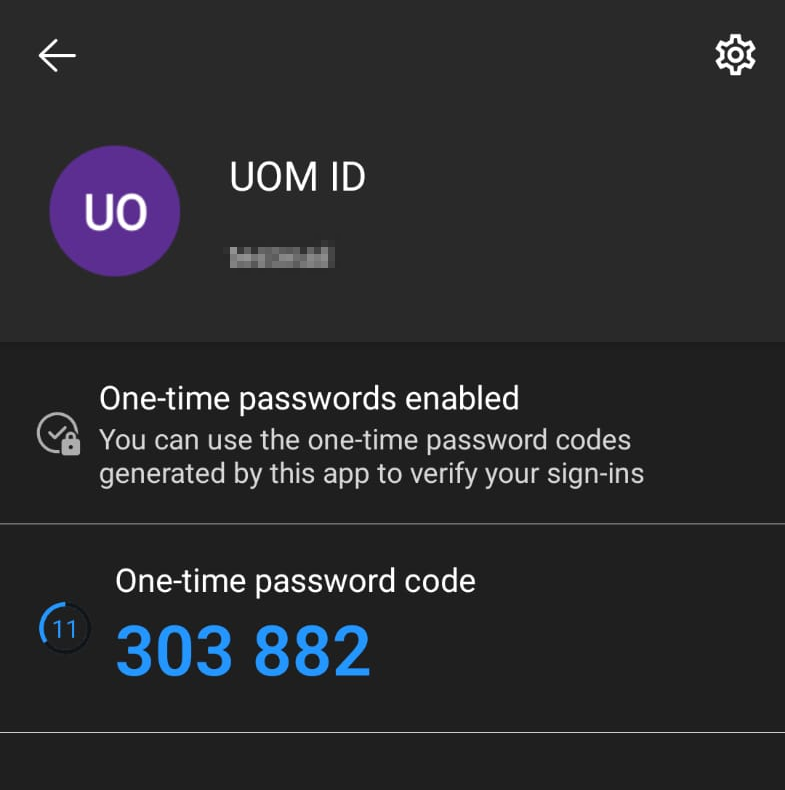
Now you will see the one-time code here

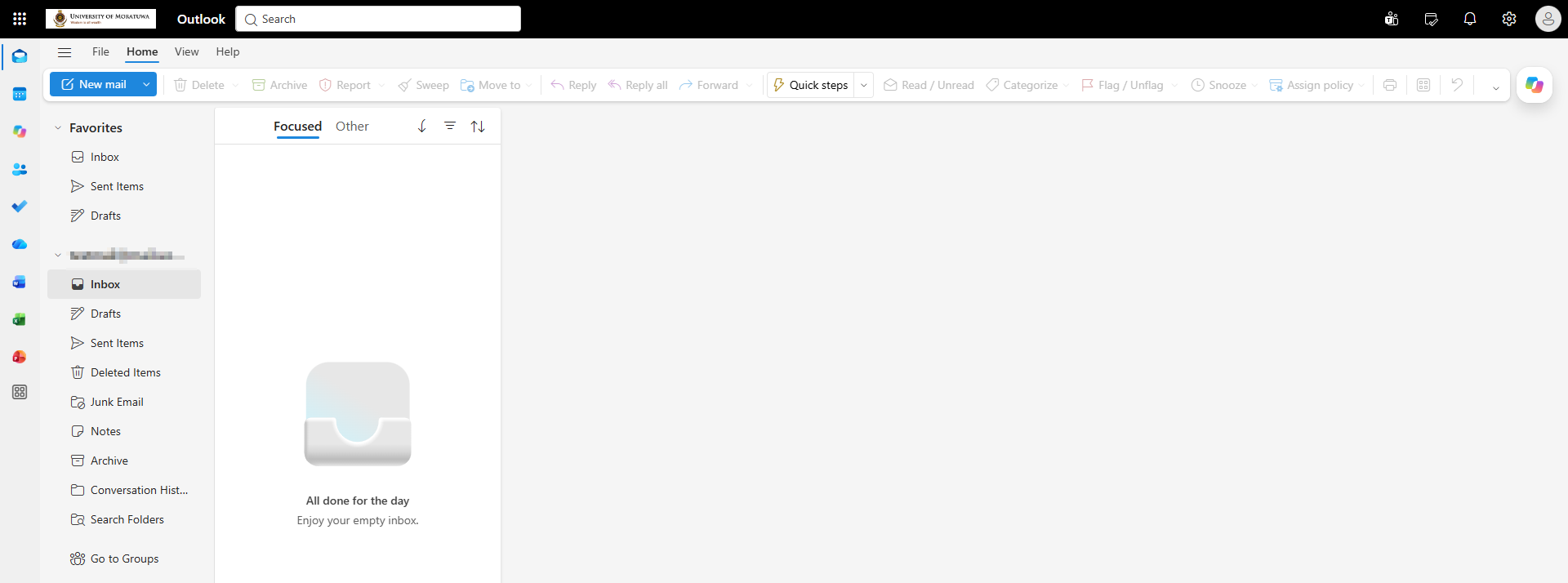
Enter the onetime code that shows in the MS Authenticator app (1) and then click Sign In (2) (Note: the code will change every 30 seconds) After a successful login you can access your mail.
2.First Login
Setting up OTP for the first time
According to to the University of Moratuwa IT security policy all users are required to have multi factor authentication. Therefore you need to follow the instructions below.
How to download the Microsoft Authenticator App
Open PlayStore on Android or Appstore in Apple search for Microsoft Authenticator and install it
If you are logging in for the first time MFA registration page will open
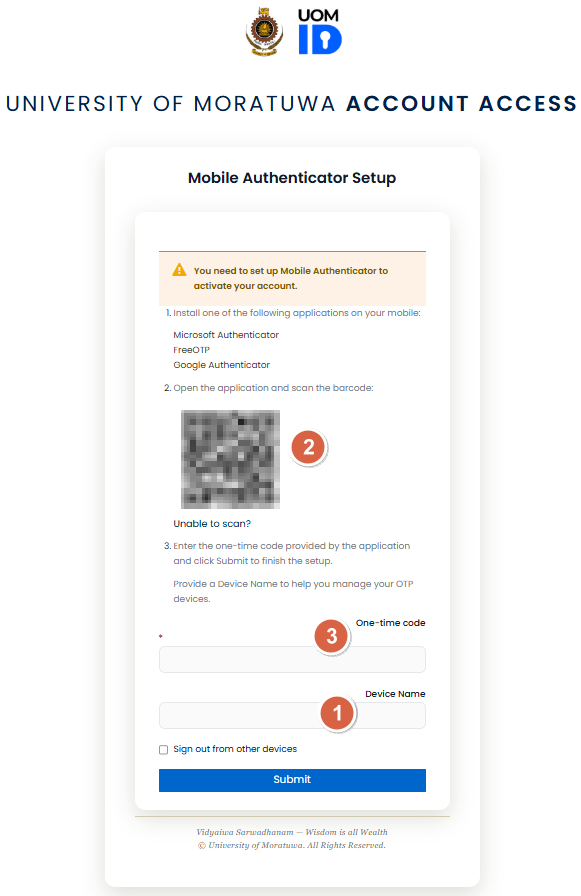
1. Enter a name for the device.
2. Scan the QR code via the authenticator app.
3. Enter the one-time code.
- Here's how to scan the code and find the one time code for the first time
-

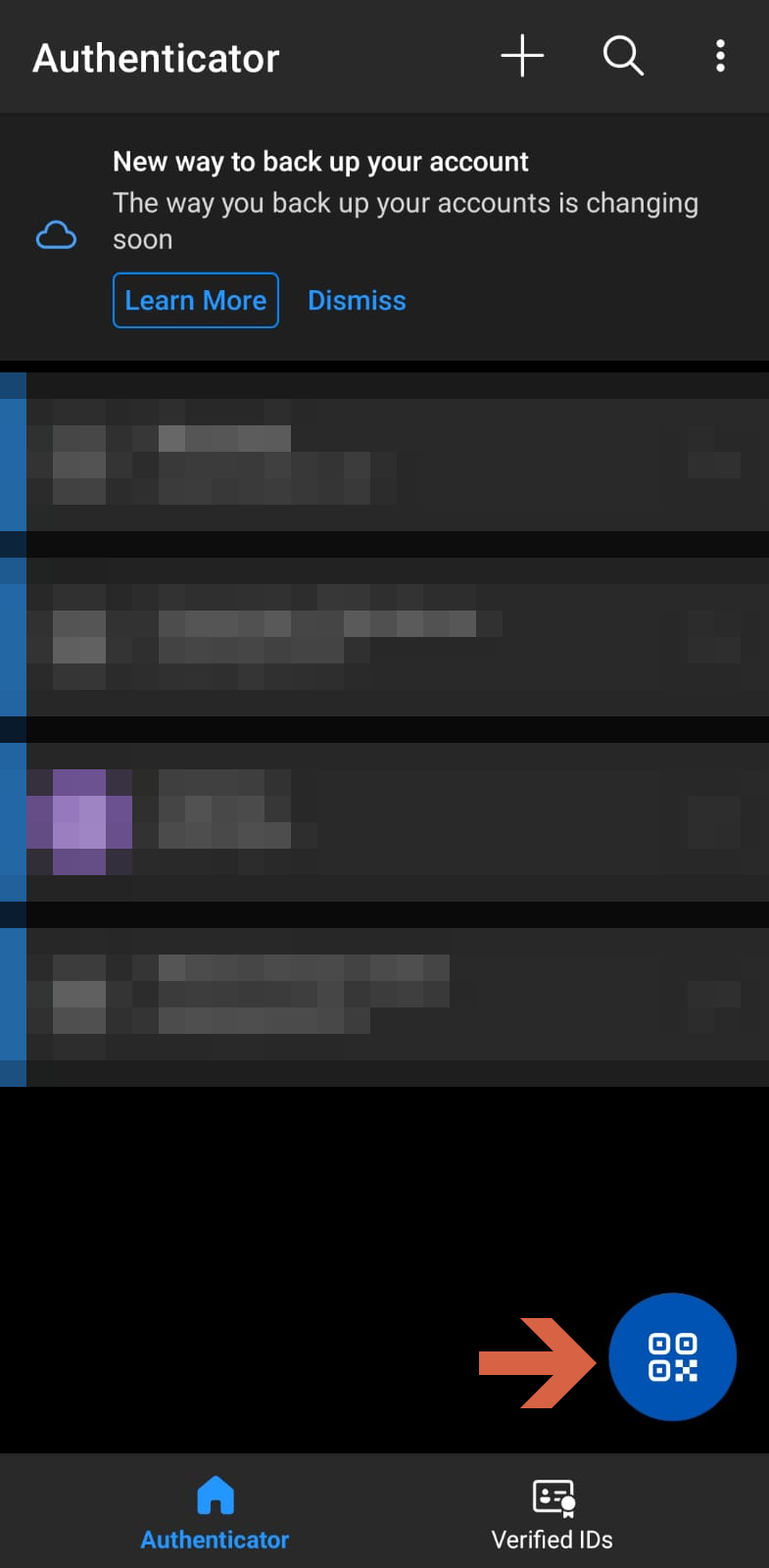
- Tap the QR icon on the app scan the QR code in the Mobile Authenticator Setup (MFA registration page) and you are done. Your Authenticator app should show your new one-time code under "UOM ID" tap to see the code.
-