According to to the University of Moratuwa IT security policy all users are required to have multi factor authentication. Therefore you need to follow the instructions below.
How to download the Microsoft Authenticator App
Open PlayStore on Android or Appstore in Apple search for Microsoft Authenticator and install it
[](https://wiki.uom.lk/uploads/images/gallery/2026-10/ofGScE9yEfMl84T9-image.png)If you are logging in for the first time MFA registration page will open
[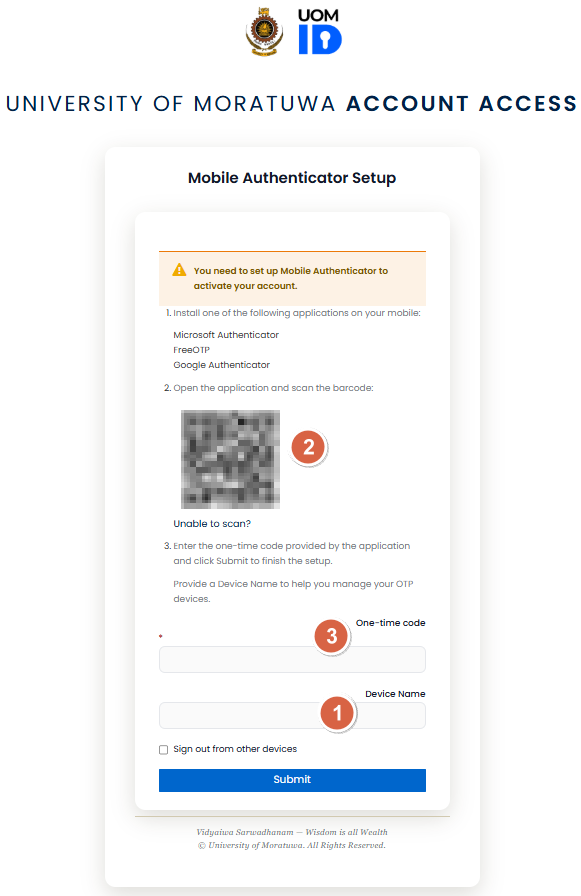](https://wiki.uom.lk/uploads/images/gallery/2026-10/witbcJQJIbULecS9-image.png)1. Enter a name for the device. 2. Scan the QR code via the authenticator app. 3. Enter the one-time code.
1. Here's how to scan the code and find the one time code for the first time 2. [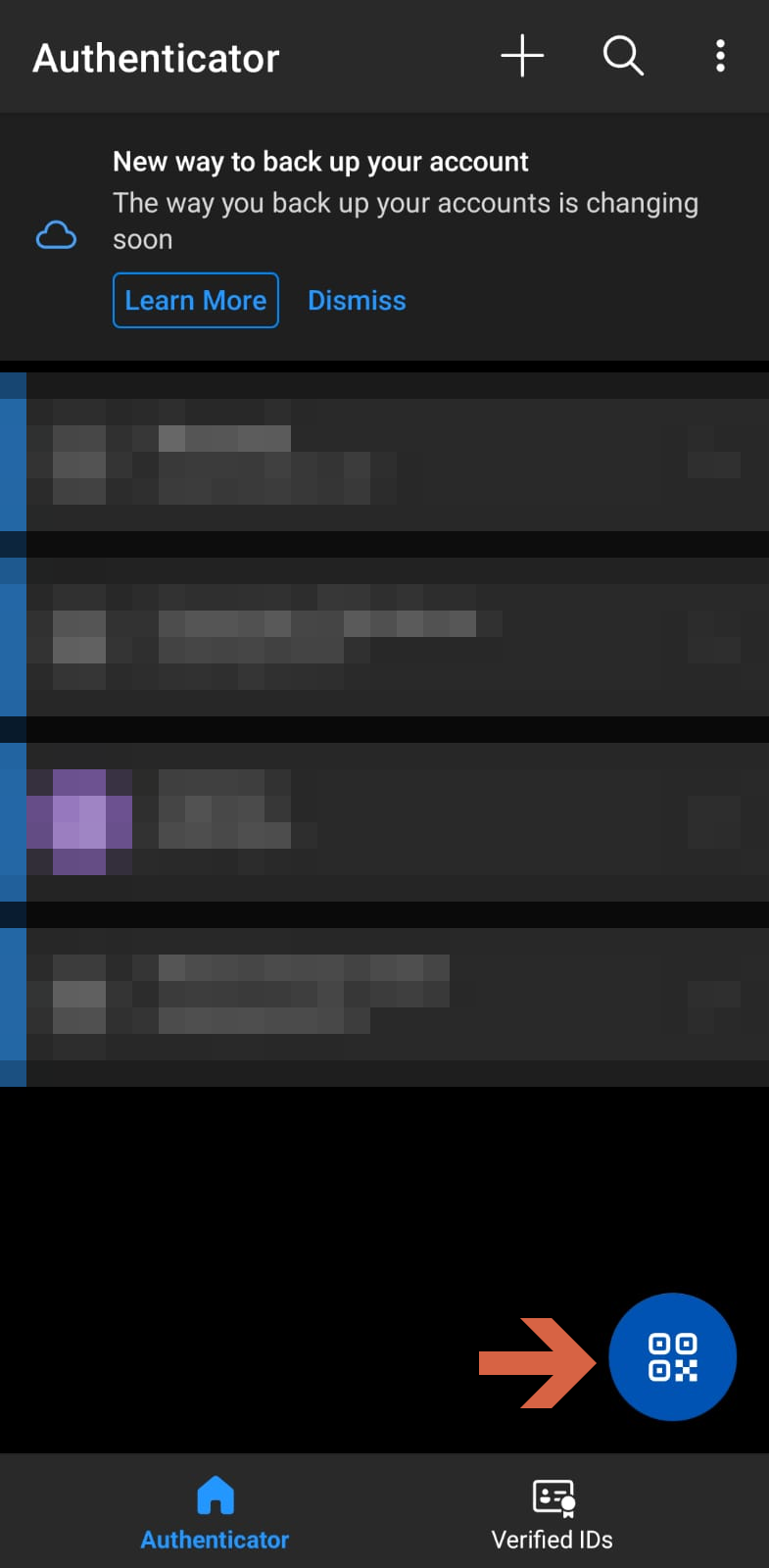](https://wiki.uom.lk/uploads/images/gallery/2026-10/rrMQjYe4orGYMNmt-image.png) 3. Tap the QR icon on the app scan the QR code in the Mobile Authenticator Setup (MFA registration page) and you are done. Your Authenticator app should show your new one-time code under "UOM ID" tap to see the code. 4. [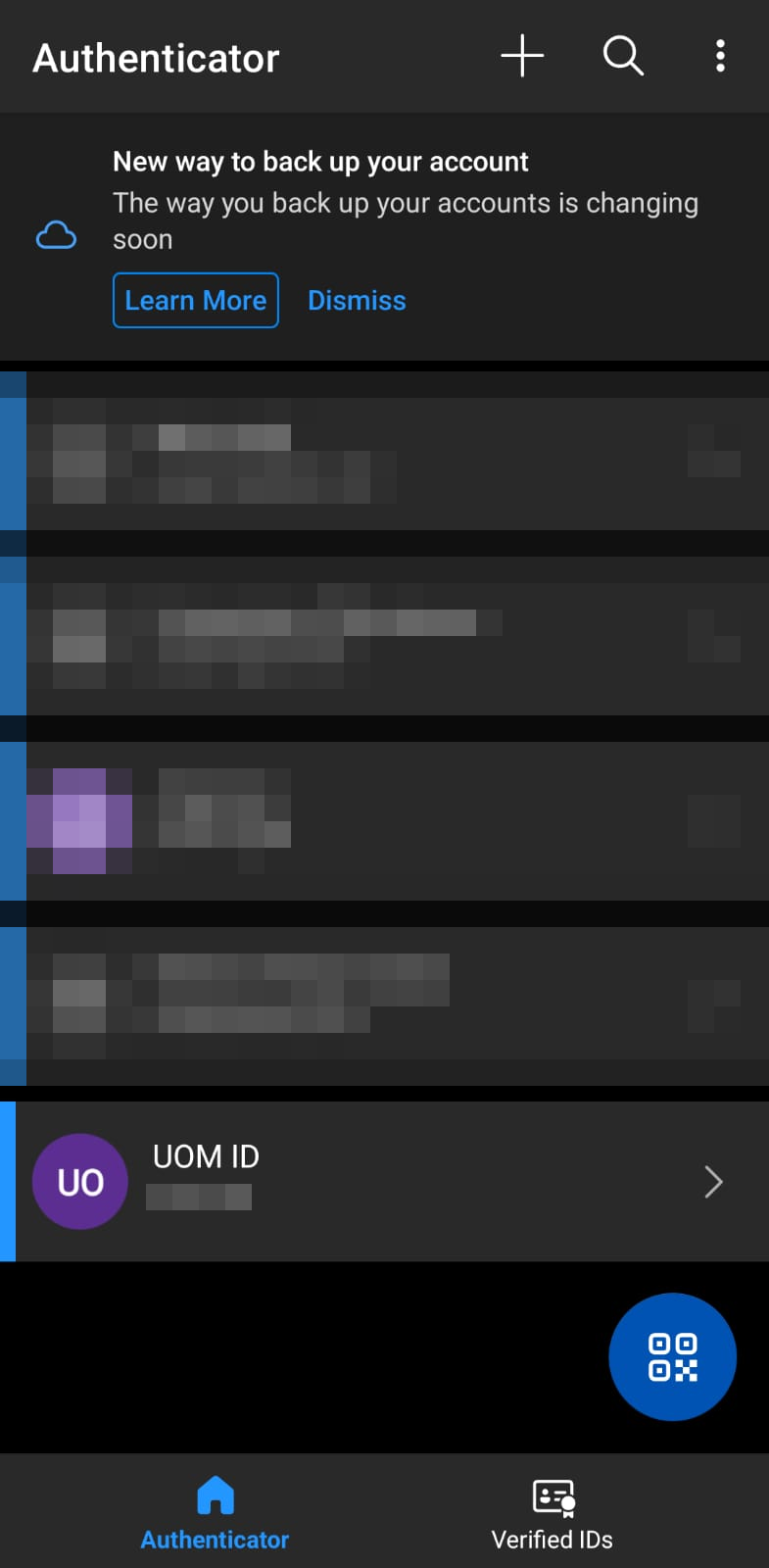](https://wiki.uom.lk/uploads/images/gallery/2026-10/H0ZSYLkbFEztuAhc-image.png)