# Proxy Settings guide
# Proxy setting for UoM internal devices step by step guide
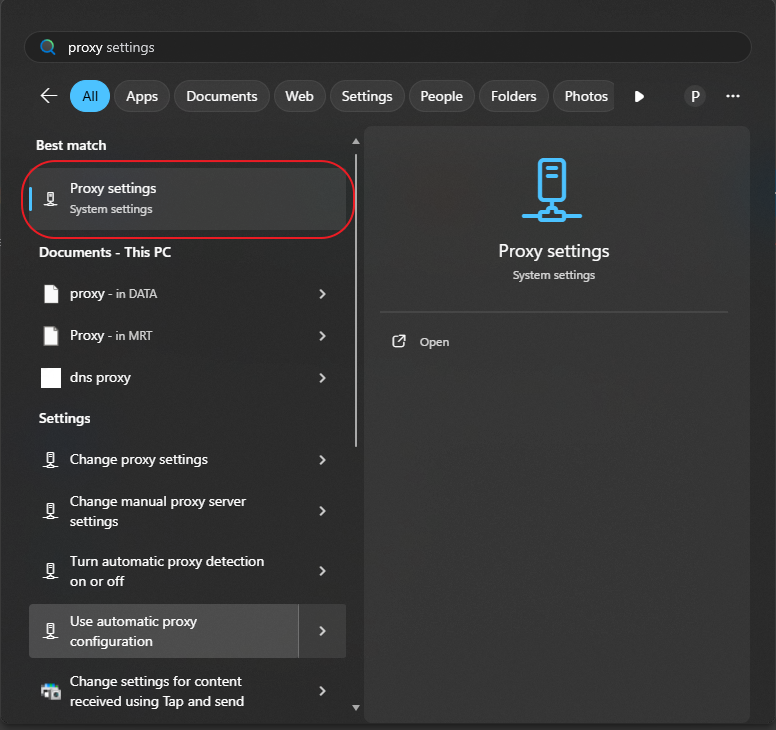
> - ##### Open Start Menu and search for "Proxy settings" and open it.
> - [](https://wiki.uom.lk/uploads/images/gallery/2025-11/y39sQL43bpA0ib6U-image.png)
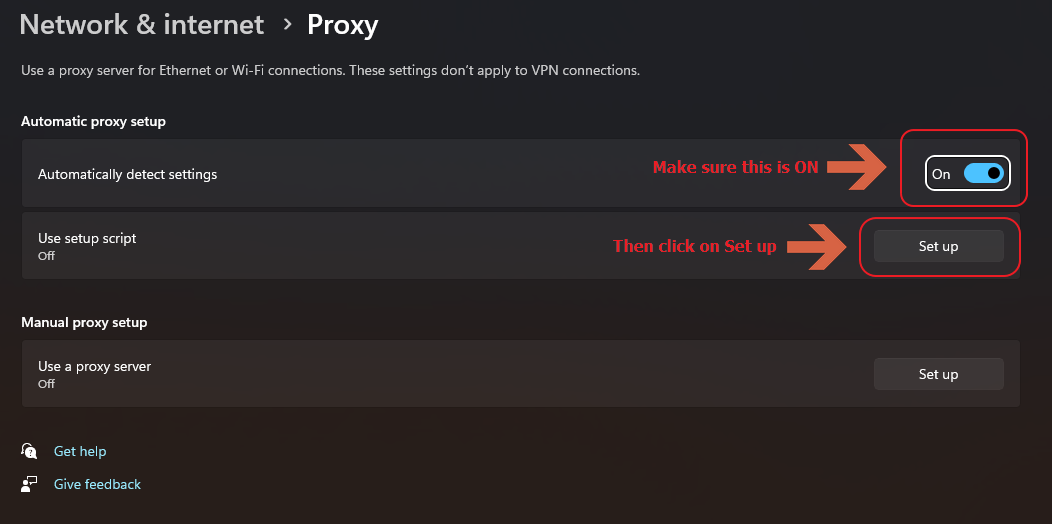
> - ##### Beforehand, remove existing proxy settings if you have any. Then turn on "Automatically detect settings" then click on "Set up".
> - [](https://wiki.uom.lk/uploads/images/gallery/2025-11/pkGR70v5FpNnWz1F-image.png)
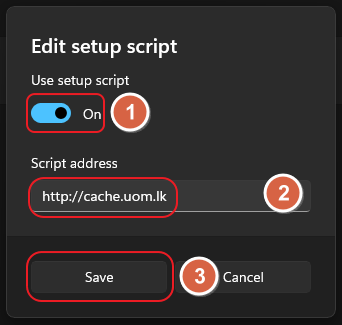
> - ##### Turn on "Use setup script" and enter `http://cache.uom.lk` as the script address, and click save.
> - [](https://wiki.uom.lk/uploads/images/gallery/2025-11/BC5FoACdij9pbYsl-image.png)
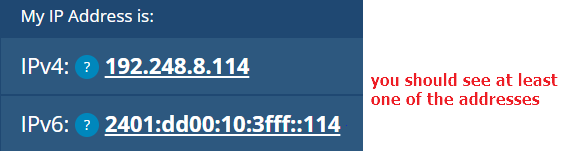
> - ##### Open up your favorite browser, **make sure your browser proxy settings are not altered**, do a google search for "what is my IP address" click on the first link. or visit [https://whatismyipaddress.com/](https://whatismyipaddress.com/) you should see at least one of the below addresses.
> - [](https://wiki.uom.lk/uploads/images/gallery/2025-11/hrQULC52Pqq3E6fD-image.png)
# Proxy settings for UoM external users
To access UoM subscribed external educational repositories from your home via **UoM External Web Proxy** please follow these steps.
**Step 1**
- Goto your Browser's Proxy Settings
**Step 2**
- For HTTP Proxy address, enter **cache2.uom.lk**
- For port, enter **3128**
- Save your configuration.
**Step 3**
- Once you are prompted with the authentication dialog, enter your UoM credentials.
---
Please note that UoM External Web Proxy will not work within the university network.
**Important Notice**
- ***This service is strictly for educational purposes. You can only access UoM-subscribed external educational repositories.** *
- ***Any detection of an illegal activity will cause the user to be permanently banned from the service, and the corresponding UoM account will be disabled without prior notice.***