O365 license is active
Windows education licenses are active.
Open a ticket to renew your license. if you are **an active** student or a staff member.
Multi Factor authentication enforced
# Microsoft Office365 # Signup to Office365 offered by UoM**UOM users (staff and students) are eligible to download the licensed Microsoft Office 365 Offline version to their devices through a paid educational subscription obtained for [uom.lk](http://uom.lk/) domain.**
To obtain an account , open a ticket via the [UoM helpdesk](https://helpdesk.uom.lk/). You **must** select **'Specialized Services / Subscriptions/Office 365'** as the help topic avoid unnecessary delays.
You cannot merge this account with your existing (personal) MS account. If you have added your UoM email as the secondary email to your personal MS account, remove it before proceeding to the next steps to avoid complications and to save time.
A license will be provided only for personal UoM (named) account (Licenses will not be provided for designation accounts such as director-xx, head-xx, ar-xx, etc.).
Once the backend process is done, we will post a reply to your request ticket with relevant details, log in to your new account via [office.com](https://www.office.com/).
Please note that it may take up to 72 hours for the license to be fully applied to your account. (If you have used Microsoft's self-registration-service it may take lot longer) you can see the license information under your main profile > Microsoft 365 profile, in office.com.
Once you get the license you will be able to use MS online services as well as you will be able to download MS Office 365 offline setup files.
Install and sign in with Microsoft account credentials to one of the office products to activate the office software pack.
For MS Windows and Project, read the next section.
If you have any other issues, please open a ticket via the [UoM IT Helpdesk](https://helpdesk.uom.lk/). Make sure to upload a **screenshot of the entire screen (if necessary)** upon ticket submission for a smooth experience.
Please be advised that your Office 365 account is subject to permanent deletion upon graduation (for students), retirement (for permanent staff), or termination of service (for permanent, temporary, and contract staff). Once deleted, accounts and their associated data cannot be recovered under any circumstances. Therefore, it is the user's responsibility to maintain complete external backups of their data.
**Terms of Use:** By creating and using this account, you explicitly acknowledge and agree that the University of Moratuwa reserves the right to terminate this account at any time, for any reason, without prior notice.
# Guidelines for Office installation and Activation**login to [https://www.office.com/](https://www.office.com/) with your university Office 365 credentials.**
**Please note that this guideline will only work for microsoft O365 products nothing else.**
--- [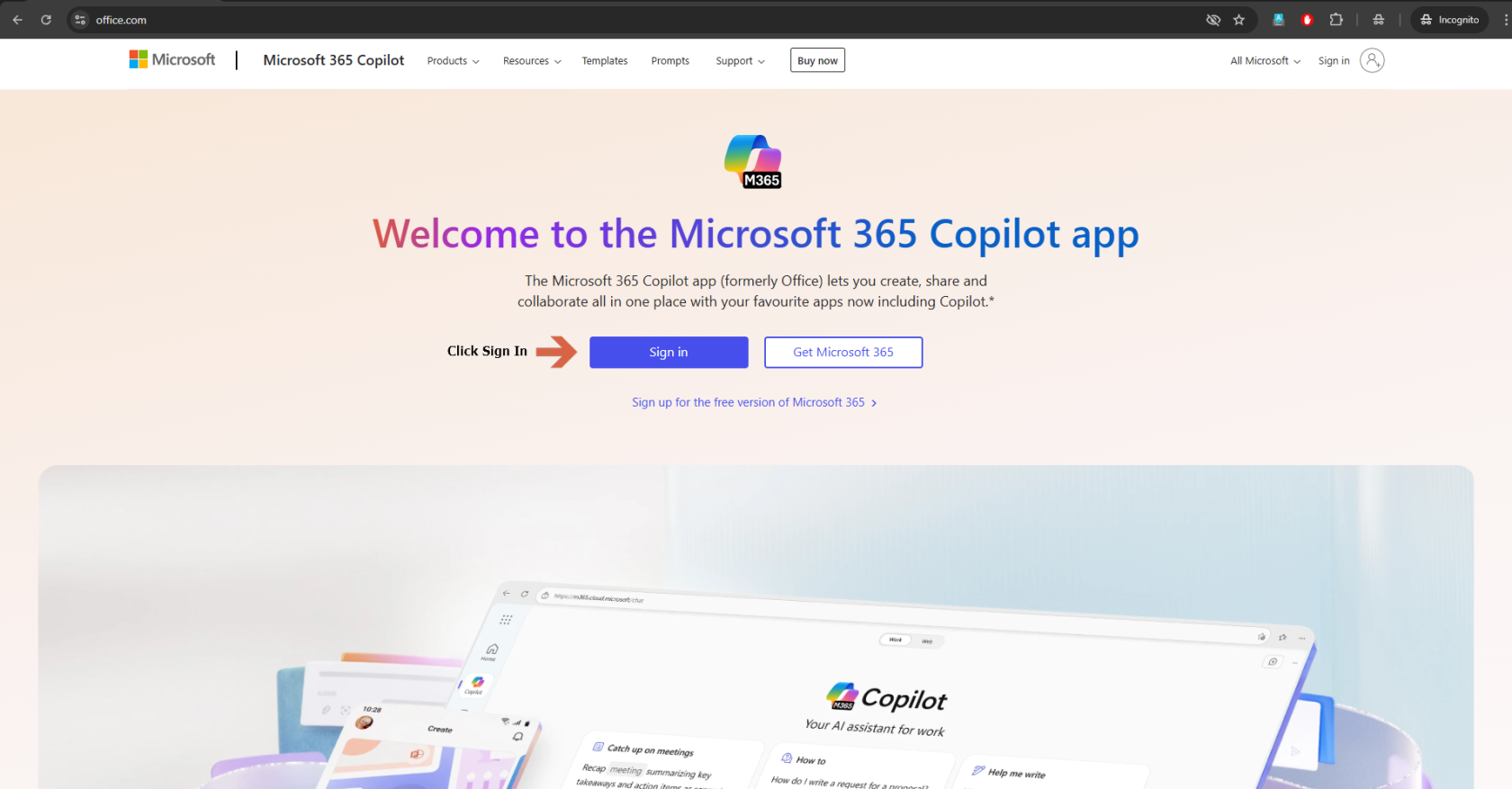](https://wiki.uom.lk/uploads/images/gallery/2025-09/XXRJetDkbtw4AvQp-image.png) ---**Batch 26 and above the username will be `will be updated soon`**
[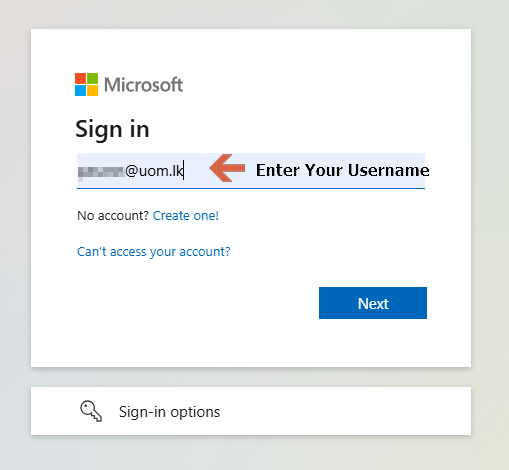](https://wiki.uom.lk/uploads/images/gallery/2025-09/gvCsZ0Gz0UDw5q6a-image.png)
--- [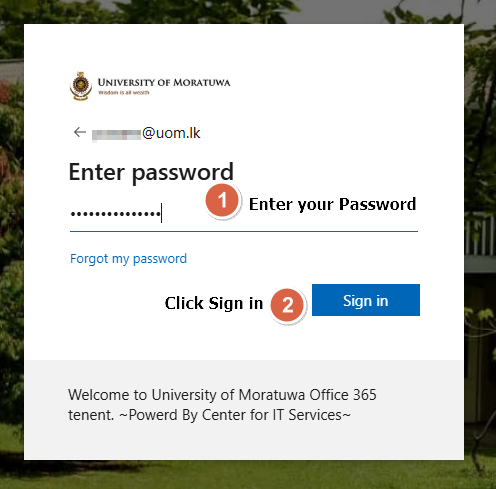](https://wiki.uom.lk/uploads/images/gallery/2025-09/49xLqqQtmqpRvRJq-image.png) --- [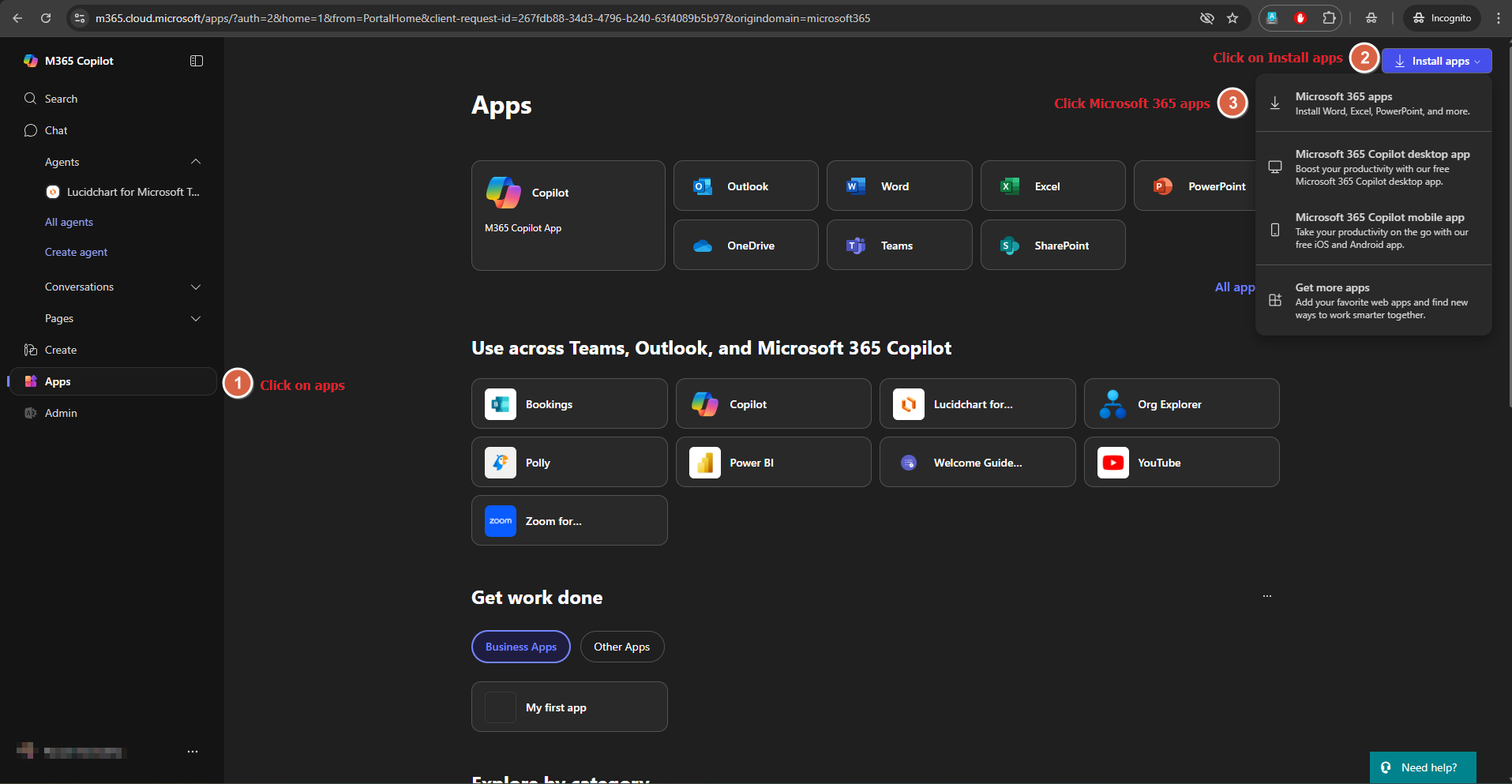](https://wiki.uom.lk/uploads/images/gallery/2025-09/PamsXCzvYyY6zAzS-image.png) --- [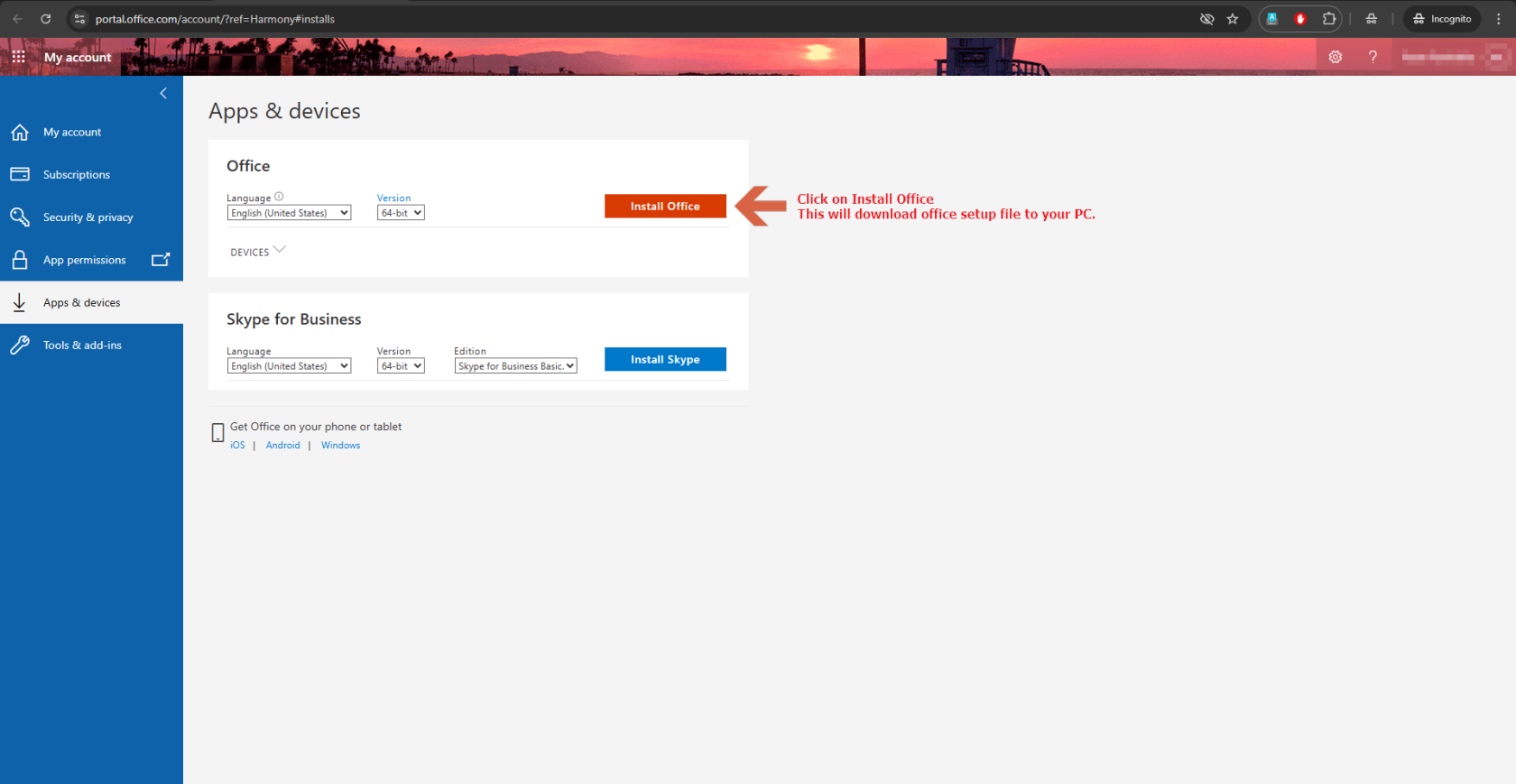](https://wiki.uom.lk/uploads/images/gallery/2025-09/JedZ1SvY0Gpcdqm3-image.png) ---After downloading the Office setup file, execute it to initiate the installation. The duration of the installation will vary depending on your internet connection speed, as it is performed online. This process is straightforward and does not require technical expertise, making it suitable for completion by any user. Once the installation is finished. Follow the instructions below to activate your Office 365 apps.
---Open one of the Office 365 apps (Word, Excel, Etc.) And click Sign In
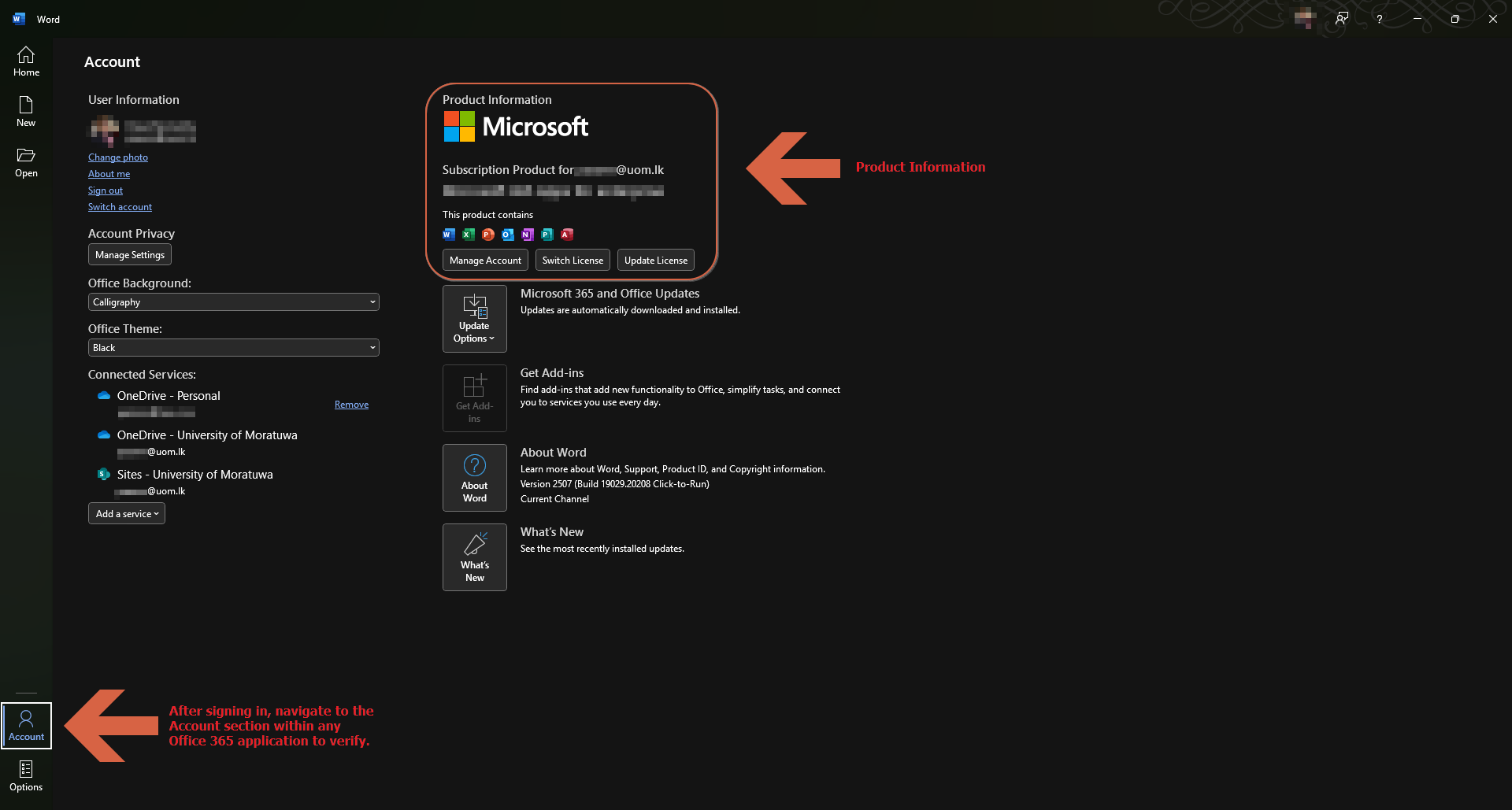
--- [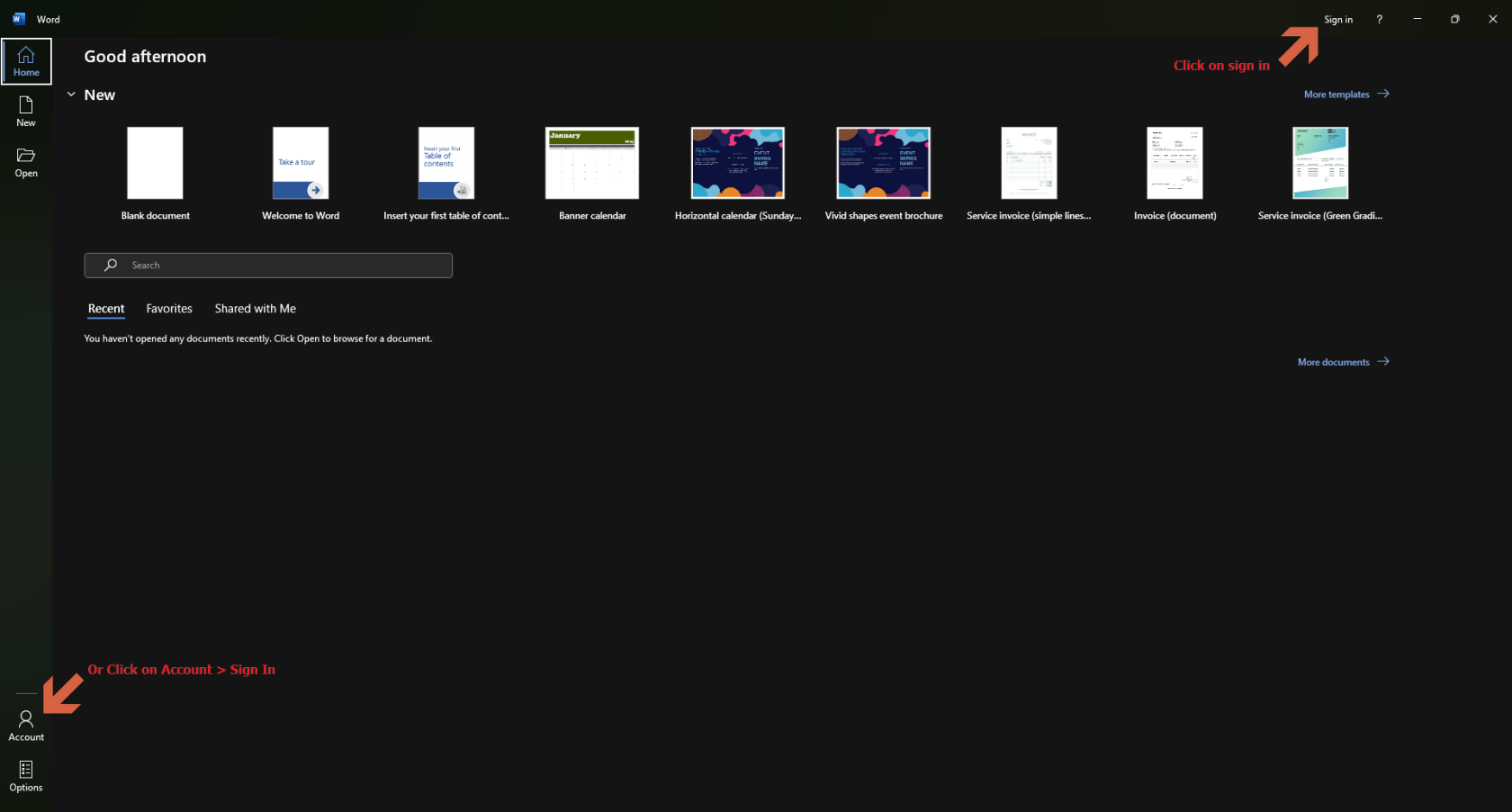](https://wiki.uom.lk/uploads/images/gallery/2025-09/xcU67oafuiGRIejq-image.png) --- [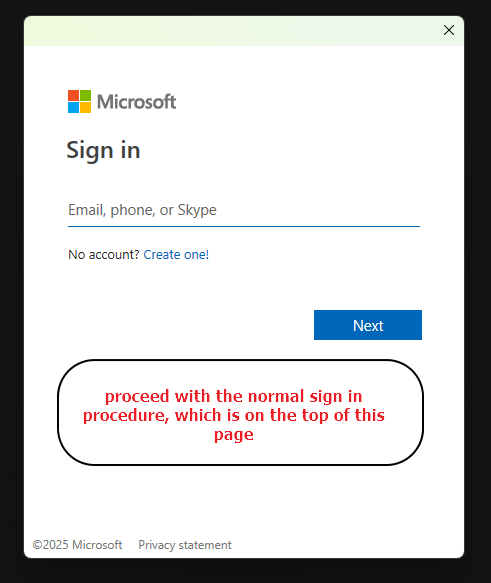](https://wiki.uom.lk/uploads/images/gallery/2025-09/2pcWBNdC57xAttqd-image.png) ---After signing in, navigate to the Account section within any Office 365 application to verify your access and credentials. Now all O365 products are activated.
--- [](https://wiki.uom.lk/uploads/images/gallery/2025-09/dZs9s2xmw8fFvbtb-image.png) --- # Microsoft Windows and Project # Download Microsoft Windows and MS ProjectIf you are part of **Batch 26 and above DO NOT follow** the instructions below.
**Microsoft Windows and Microsoft Project are available now.**
Log in to the [Azure Education Portal](https://signup.azure.com/studentverification?offerType=1) with your Office 365 credentials.
(If you have not created a Microsoft account using uom.lk email, please follow the instructions located on the previous page and create a Microsoft account first. After creating this account Log in to [Azure Education Portal](https://signup.azure.com/studentverification?offerType=1) using your newly created credentials.)
You may be required to **verify your account** once you enter MS Account Credentials for the MS Azure link. **Use your @uom.lk account for verification**.
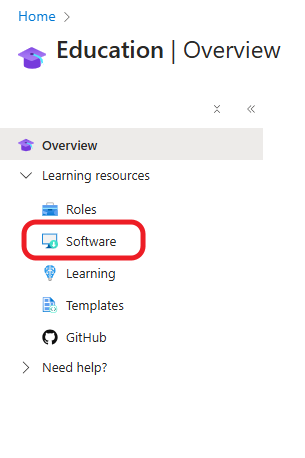
Click on Software Under Learning Resources on the left.
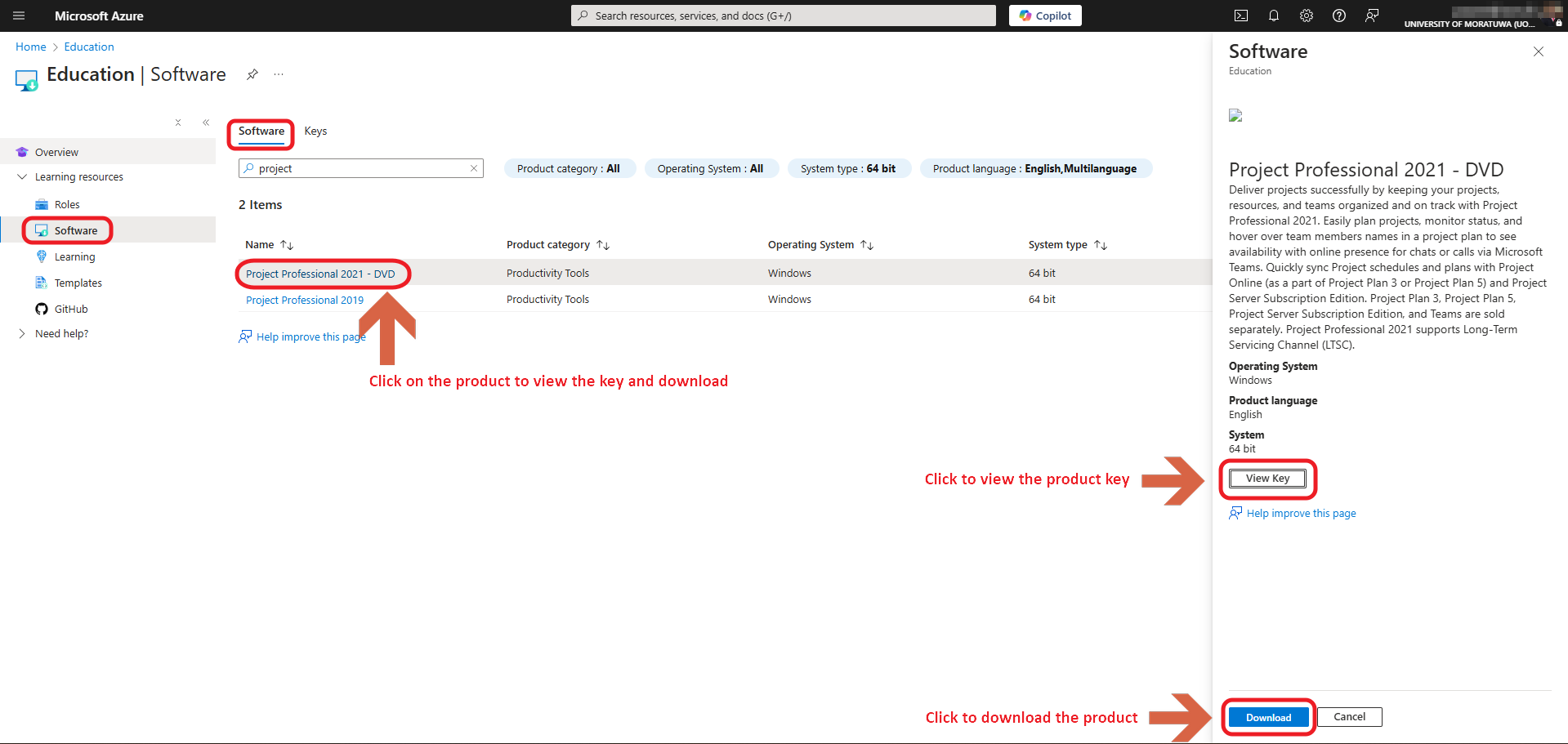
[](https://wiki.uom.lk/uploads/images/gallery/2025-02/ZCoeDh6Ro892UXPW-image.png)Click on the required Product you wish to download under the software tab, and click on "View Key" to obtain the key, Click on "Download" to download the product
[](https://wiki.uom.lk/uploads/images/gallery/2025-02/B5suxjlTXjw8AO2m-image.png)