# User Manual for Students
Login to the system
### **Login to the system**
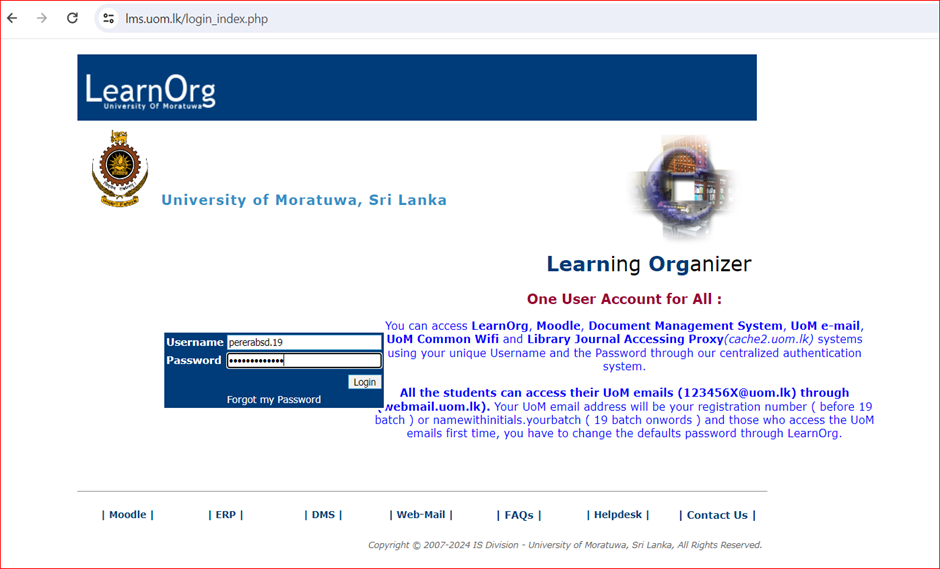
User can access the University of Moratuwa Management Information System (LearnOrg) through [https://lms.uom.lk](https://lms.uom.lk) by using any Web-browser (however recommend to Mozilla Firefox and Google Chrome) or any Operating System.
**Username**- surname-with-initials.<batch> without spaces (ex:- If you are Intake 19 and your name is Perera B.S.J, username is pererabsd.19 ) (**You should have received your username from the examinations division.**)
**Password** - If you access the system first time you can use “Index Number” as the default password. You can contact the Examination division or CITeS helpdesk ([https://helpdesk.uom.lk](https://helpdesk.uom.lk)) for any issues.
Initial Interface
### **Initial Interface**
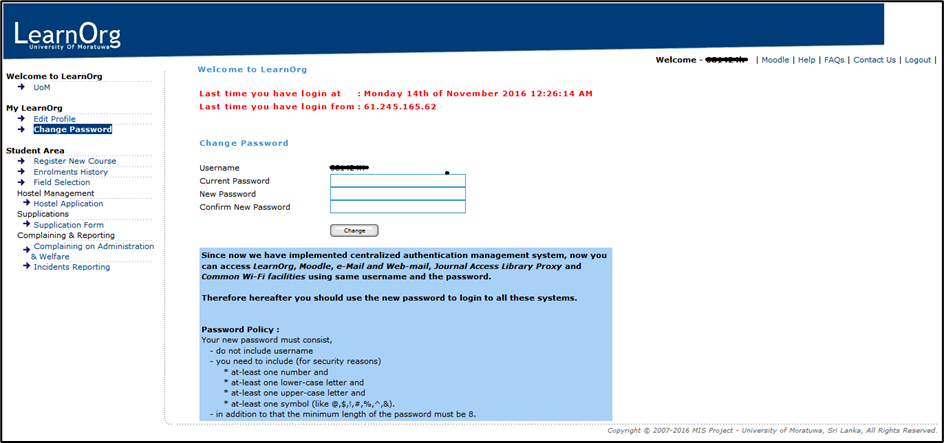
When you login to the system you also will an interface as shown above. The system shows you last login details such as IP address, time and date for security purposes.
If you still using default password, system will automatically prompt password resetting options.
*\[If it is a public computer (such as a lab computer), make sure that you have logged out after using the system by using top-right corner “Logout” option.\]*
Change profile information
### **Change profile information**
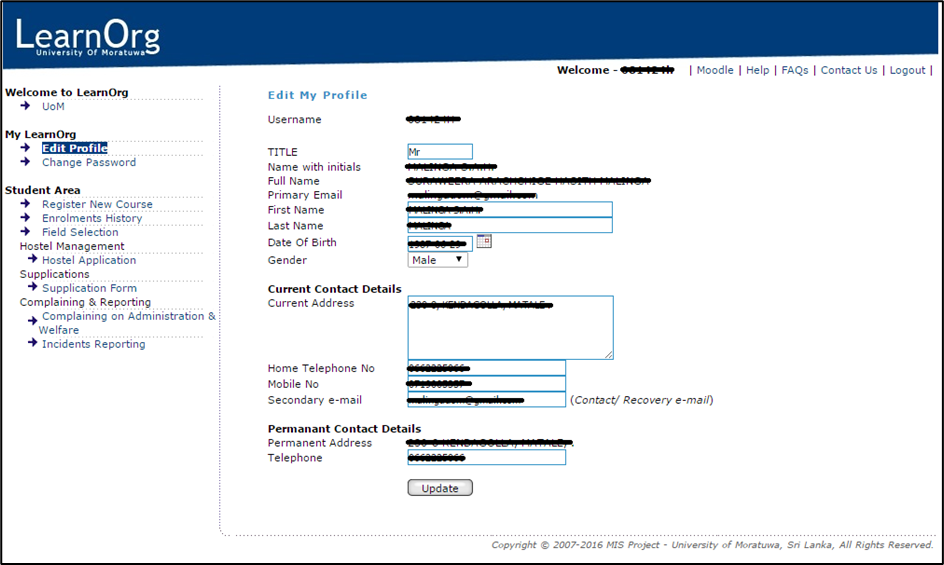
Users are allowed to change basic information such as Title, First Name, Last Name, Date of Birth, Gender, Current Address, Current Home Telephone number, Mobile Number, Permanent Home Telephone number and Personal e-Mail address. User has to click on “Update” button to apply the changes.
*\[It is recommended to keep these information up to date.\]*
Change Password
### **Change Password**
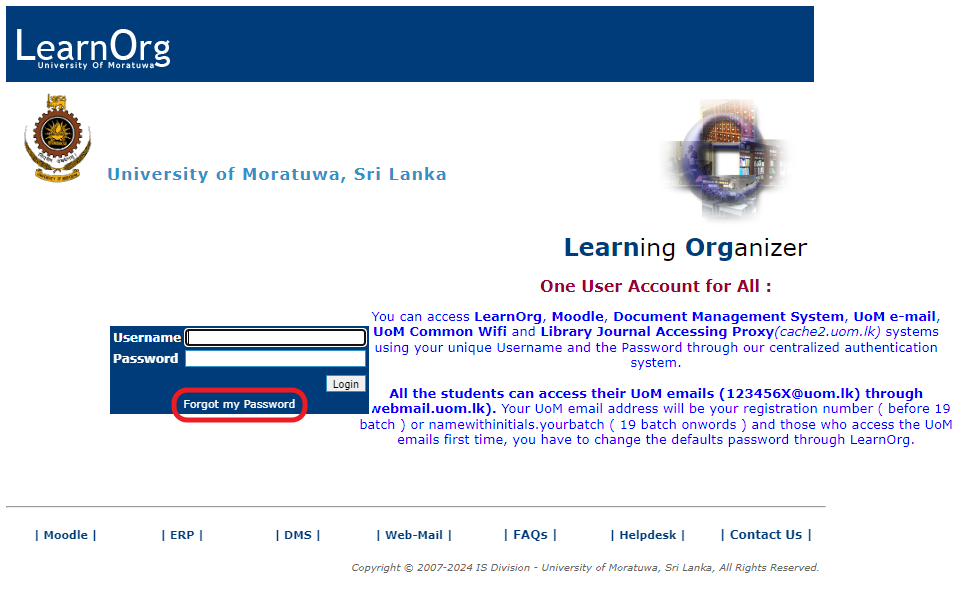
#### **Step 1: Click on "Forgot my password."**
[](https://wiki.uom.lk/uploads/images/gallery/2024-12/ZLoIVI5zbdE0Hip2-image.png)
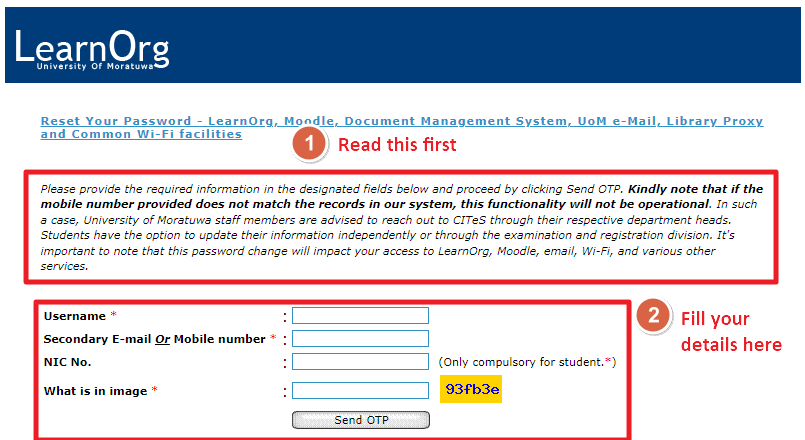
#### **Step 2: Read the instructions first, and then enter the requested details in the given text boxes. Then press "Send OTP."**
[](https://wiki.uom.lk/uploads/images/gallery/2024-12/mEDucKOIZyhSHqzP-image.png)
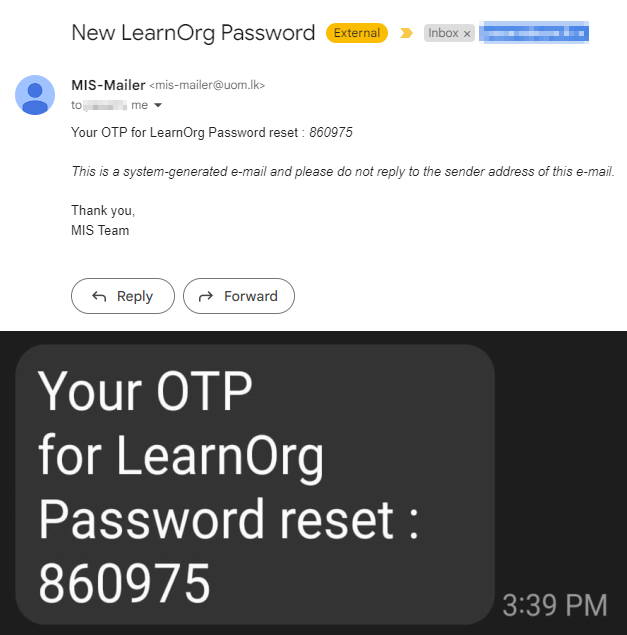
#### **Step 4: Wait for the OTP. An OTP will be sent to your secondary email and to your mobile number.**
[](https://wiki.uom.lk/uploads/images/gallery/2024-12/pDP5w3UwRL1hnjZq-image.png)
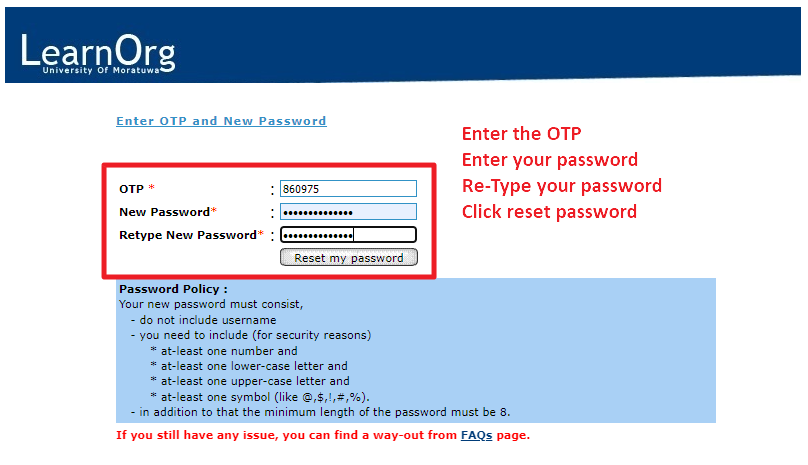
#### **Step 5: Set a new password for your account. Make sure to read the password policy first.**
[](https://wiki.uom.lk/uploads/images/gallery/2024-12/ekBhlw6P40utNgkI-image.png)
Course Enrolment
### **Course Enrolment**
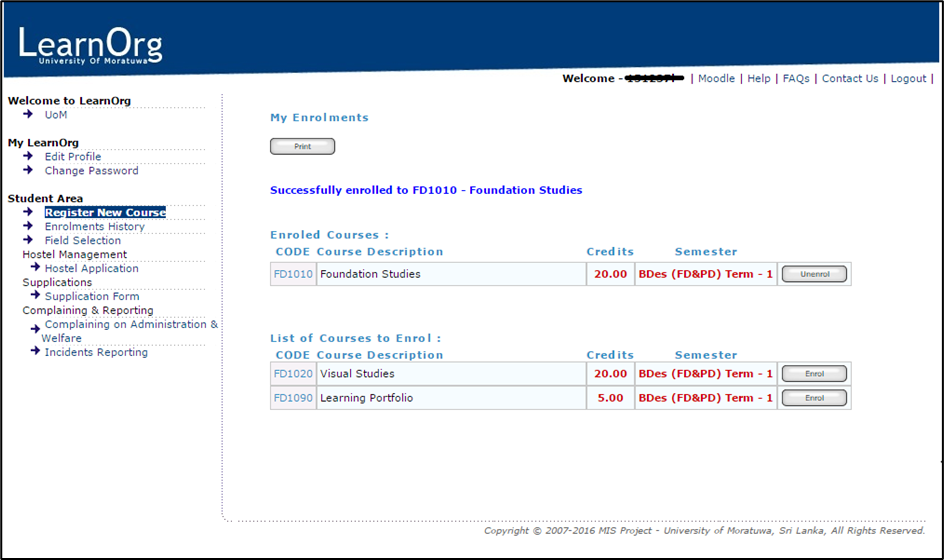
Student should enroll to semester offerings by using the LearnOrg system. Click on “Enrol” button for relevant and required course modules. If it is successful you will see success message top of the page.
*\[Students are responsible for enrolling to semester offerings within the permitted period. **Make sure that your number of enrolled credits within the required credit limit.** Student is responsible to enroll for required compulsory modules. Students should follow the University, Faculty or Department guidelines when enrolling for modules.\] *
*\[Contact relevant Undergraduate Studies Division-for UG students/Postgraduate Studies Division-for PG students regarding repeat registrations or any other registration related inquiry\]*
Course Un-enrollment
### **Course Unenrollment**
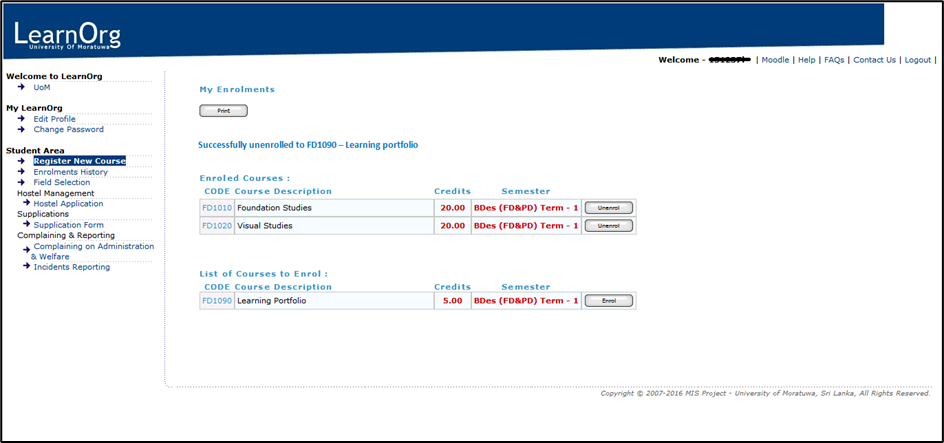
Students can un-enroll (de-register) from registered semester offerings by using the LearnOrg within the permitted period. Click on “Unenrol” button for course modules that you need to unenrol. If it is successful you will see the success message top of the page.
*\[Make sure that your number of enrolled credits is within the required credit limit. Students are required to follow the University, Faculty or Department guidelines\] *
Enrollment history
### **Enrollment history**
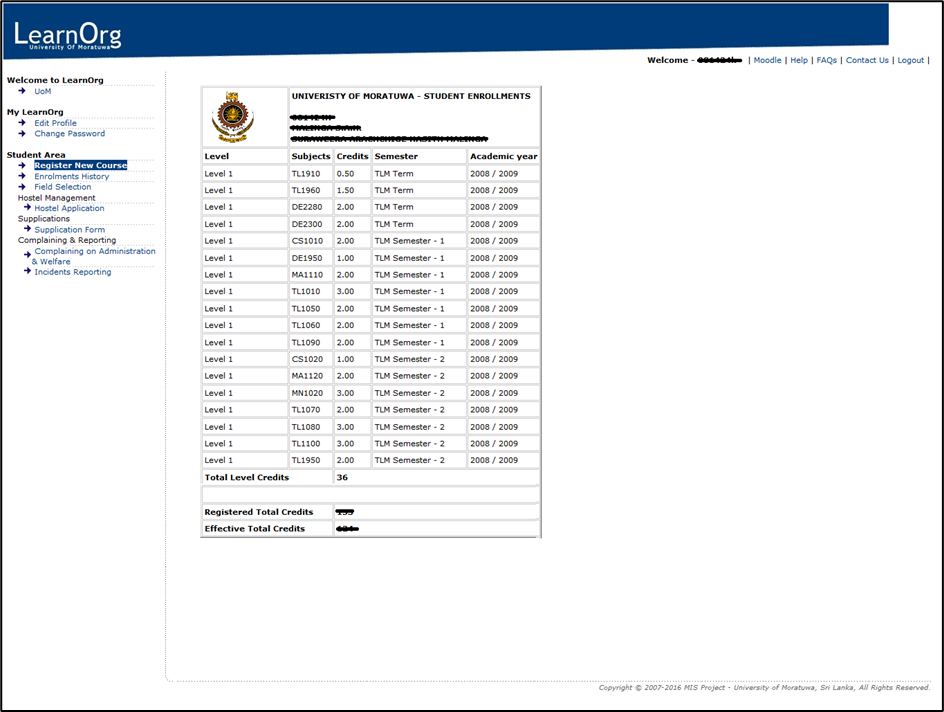
Students may view their total enrollment and enrollment history by using this function.