# Other
Check Course Offering Details
#### **Check Course Offering Details**
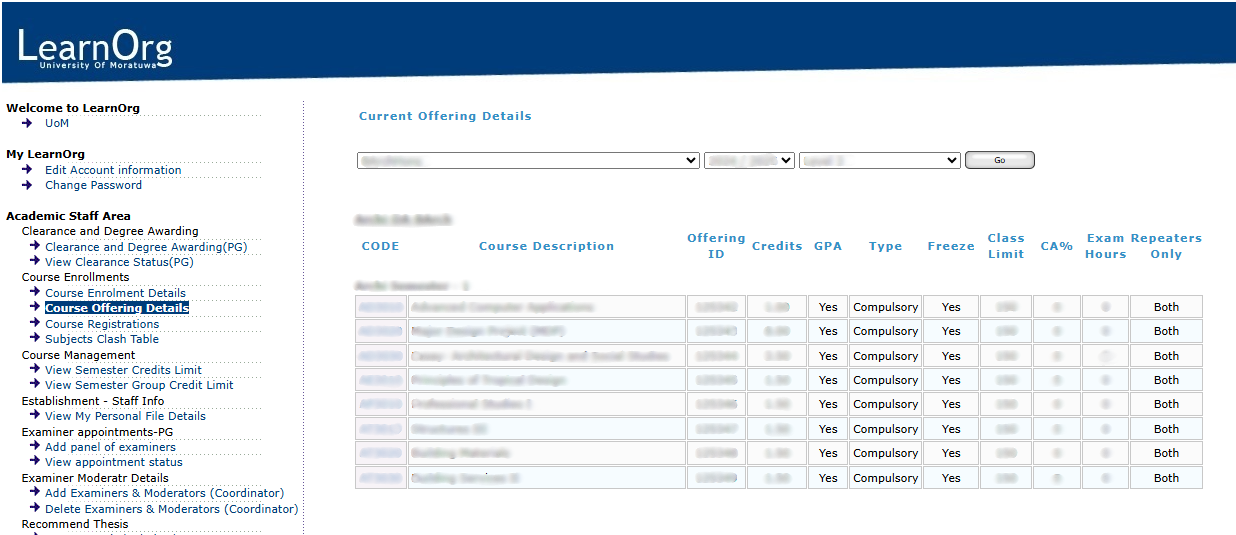
Once successfully logged into the Learning Management System (LMS), users can proceed to the **Academic Staff Area**, where they are granted access to the **Course Offering Details** functionalities.
To view the module details, select the relevant **Degree Programme**, **Academic Year/Intake**, and **Level/Semester**.
[](https://wiki.uom.lk/uploads/images/gallery/2025-06/MTFhe8w5V2vxprHf-check-course-offering-details.png)
*Figure 1: Course Offering Details Interface*
Check Course Registration Details
#### **Check Course Registration Details**
##### **Option 1:**
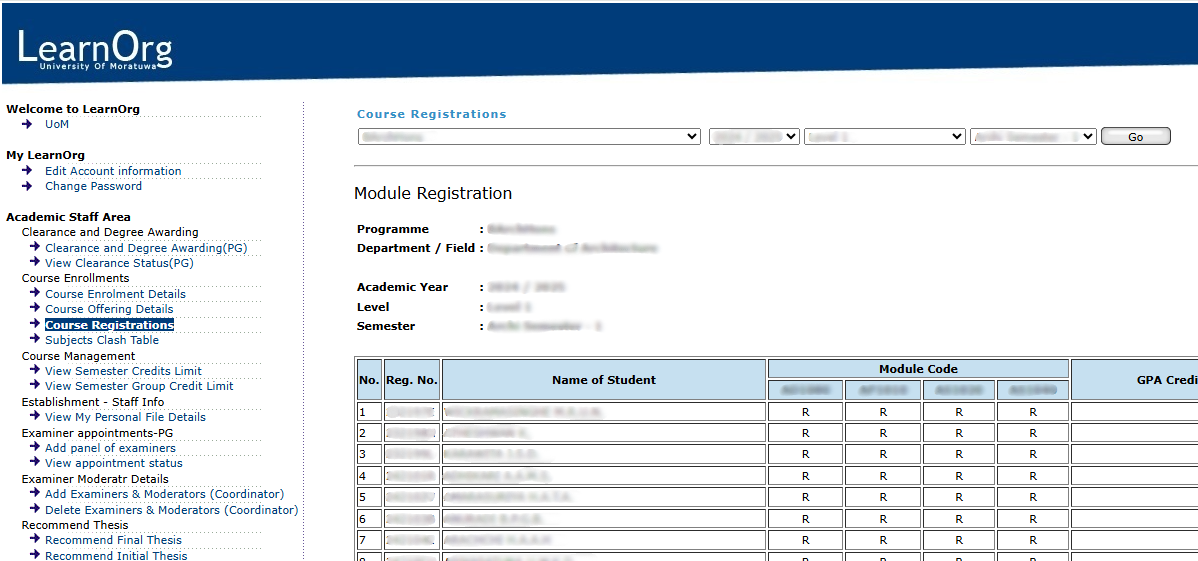
Once successfully logged into the Learning Management System (LMS), users can proceed to the **Academic Staff Area**, where they are granted access to the **Course Registration** functionalities.
To view the module details, select the relevant **Degree Programme**, **Academic Year/Intake**, **Level** and **Semester**.
**[](https://wiki.uom.lk/uploads/images/gallery/2025-06/0EgibeDcWfipnMGl-check-course-registration-details-1111.png)**
*Figure 2: Course Registration Details Interface*
#### **Student Module Registration List**
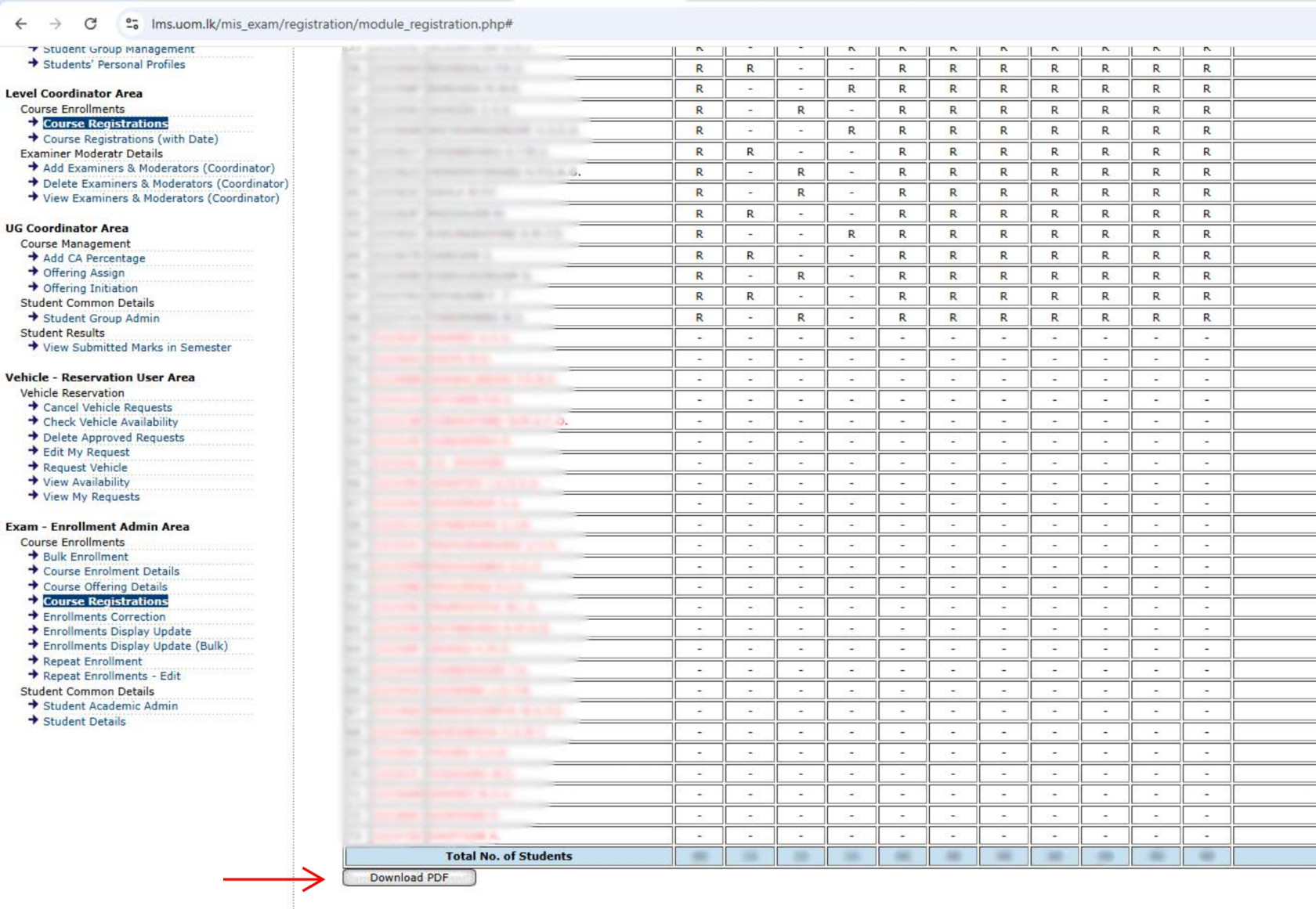
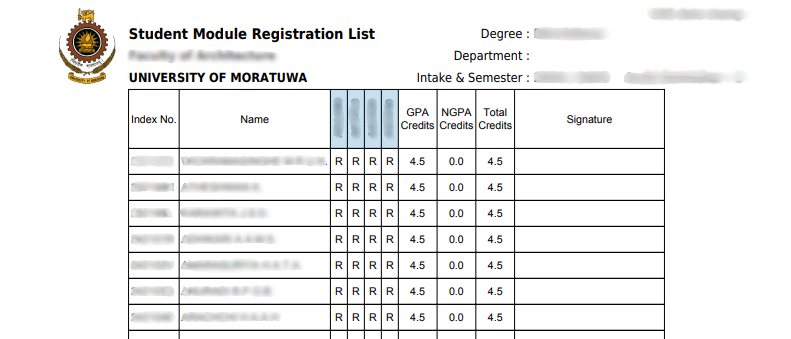
If you need to get the student module registration list you can use the "Download PDF" button under the student list as shown in Figure 3. You can use this pdf document as shown in Figure 4 to get the confirmation from the students about their registration.
**[](https://wiki.uom.lk/uploads/images/gallery/2025-06/4VMs2HoLHF4kz4Tc-check-course-registration-details-2222-page-0001.jpg)**
*Figure 3: Section for Download Student Module Registration List*
*[](https://wiki.uom.lk/uploads/images/gallery/2025-06/xJvuMK0IHXN83PJi-figure-222bbbbb.png)*
*Figure 4: Student Module Registration List*
##### **Option 2:**
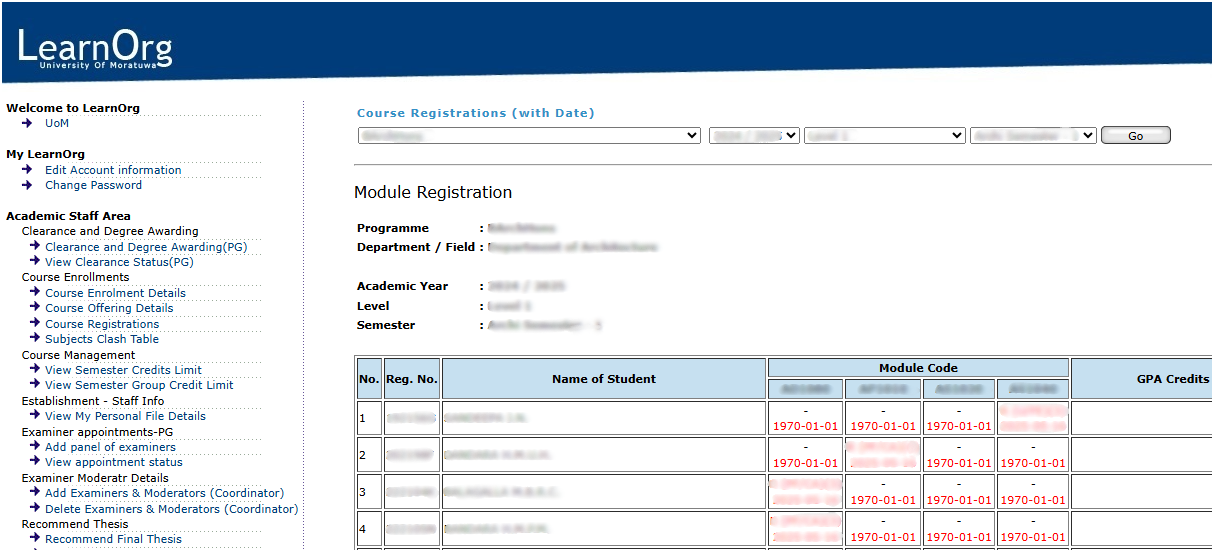
If You need to get Course Registration details with date You can access **Course Registrations (with Date)** option.
Once successfully logged into the Learning Management System (LMS), users can proceed to the **Academic Staff Area**, where they are granted access to the **Course Registration** functionalities.
To view the module details with registration date, select the relevant **Degree Programme**, **Academic Year/Intake**, **Level** and **Semester**.
**[](https://wiki.uom.lk/uploads/images/gallery/2025-06/KXh2hkacVRNuWRfc-check-course-registration-details-3333.png)**
*Figure 5:*
Student Lock/Unlock
### Student Lock/Unlock
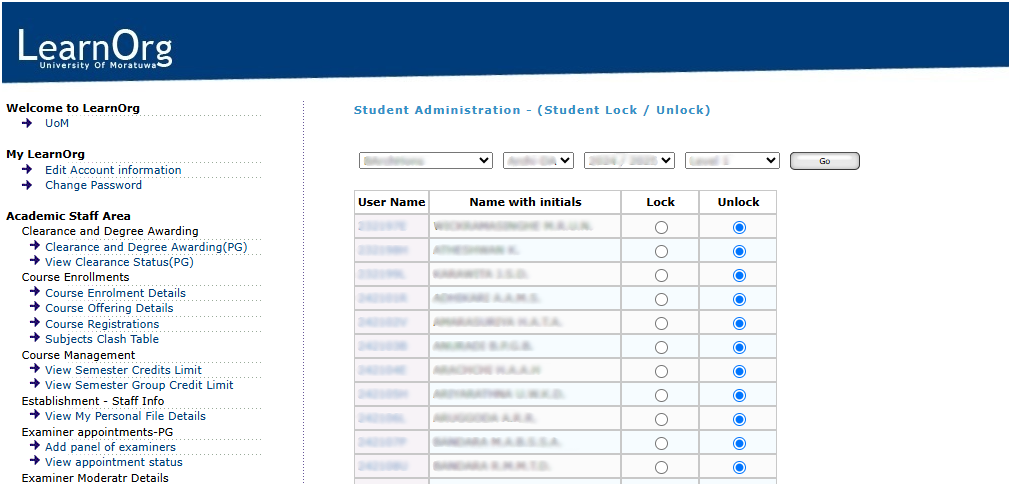
Once successfully logged into the Learning Management System (LMS), users can proceed to the **Programme Admin Area**, where they are granted access to the **Student Common Details** functionalities.
Click on the **Lock / Unlock Students** option to lock or unlock a student within the system.
To search for a specific student, select the relevant **Degree Programme**, **Department**, **Academic Year/Intake**, and **Level and** click on the **"Go"** button.
Once the student list appears you can "**Lock**" or "**Unlock**" students by click on specific radio button and then need to click on the "**Save**" button which is appear under the student list.
If needed, we can Lock/Unlock complete student list at once by using "Lock All" or "Unlock All" buttons appear under the student list. To complete need to click on "**Save**" button.
[](https://wiki.uom.lk/uploads/images/gallery/2025-06/Y0cTM4KCwKU3lmQC-lock-unlock-students-111.png)
Figure 6 -
Check Student Details
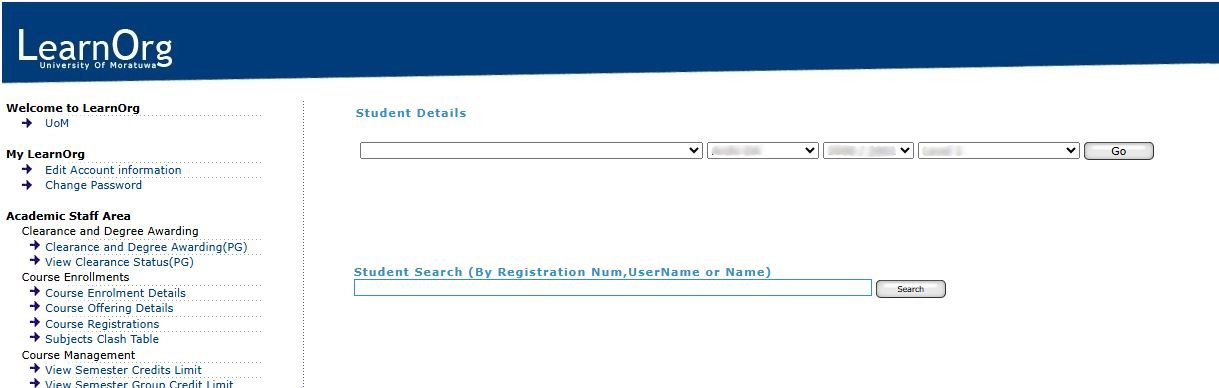
### Check Student Details
[](https://wiki.uom.lk/uploads/images/gallery/2025-06/6B3n2DprEx0HQ7Y4-student-details-1111.png)
Figure 7 -
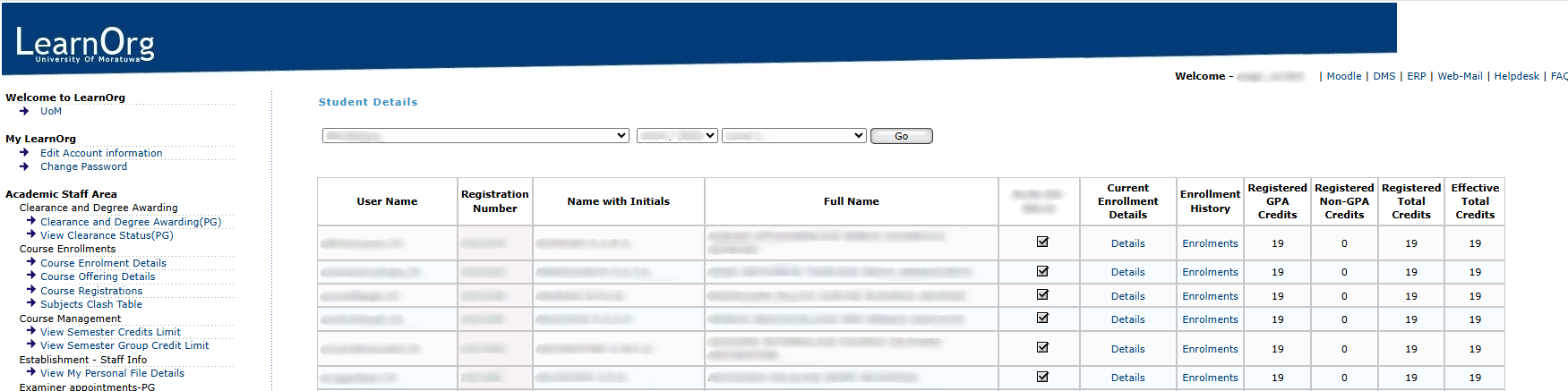
### Students' Personal Profiles
[](https://wiki.uom.lk/uploads/images/gallery/2025-06/cpzsM7rjXRZF8W4N-student-details-2222222.png)
Figure 8 -
Add new course
Add new course
[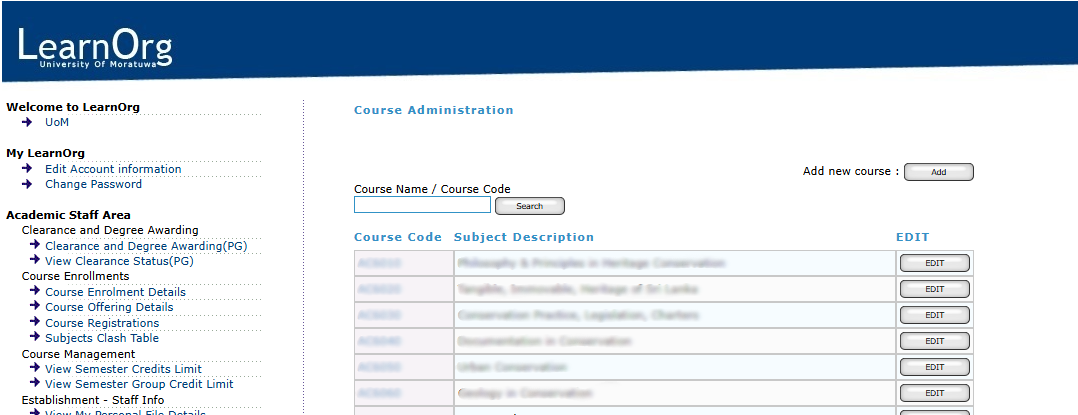](https://wiki.uom.lk/uploads/images/gallery/2025-06/0SImsaxyvtXxJxF9-figure-9-add-new-course-1111.png)
Figure 9 -
Student Group Management
Student Group Management
[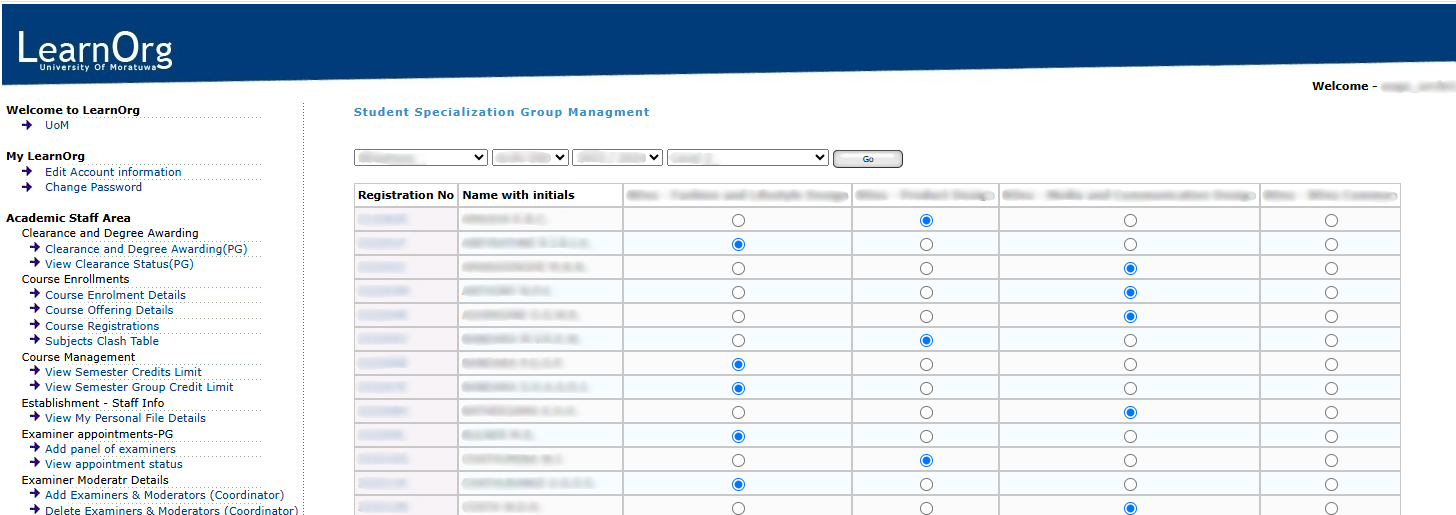](https://wiki.uom.lk/uploads/images/gallery/2025-06/nJ9RDFNxaSp60DCa-figure-10-student-groupe-management-1111.png)
Figure 10 -
Bulk Enrollment
Bulk Enrollment
[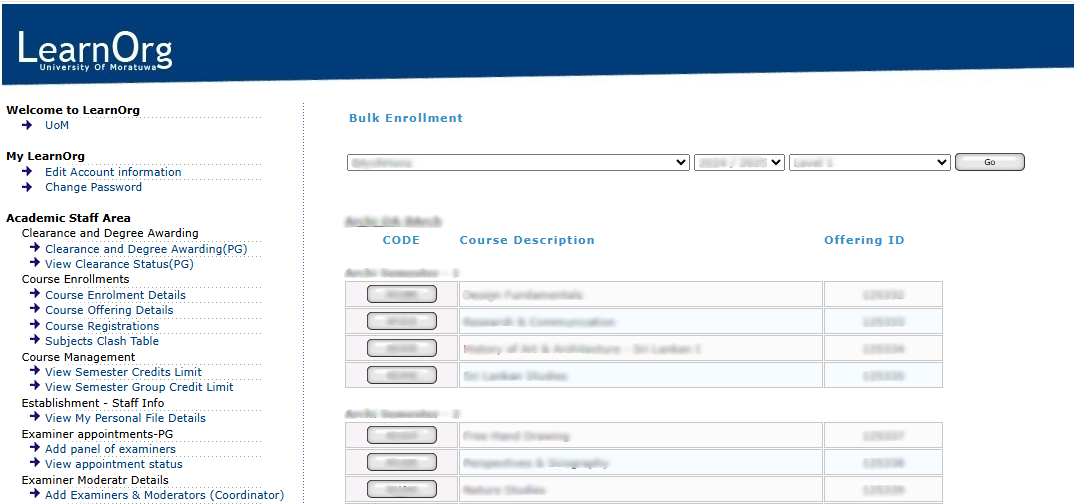](https://wiki.uom.lk/uploads/images/gallery/2025-06/KEL5eoHSljFUL1tM-figure-11-bulk-enrollment-111.png)
Figure 11 -
Enrollments Correction
Enrollments Correction
[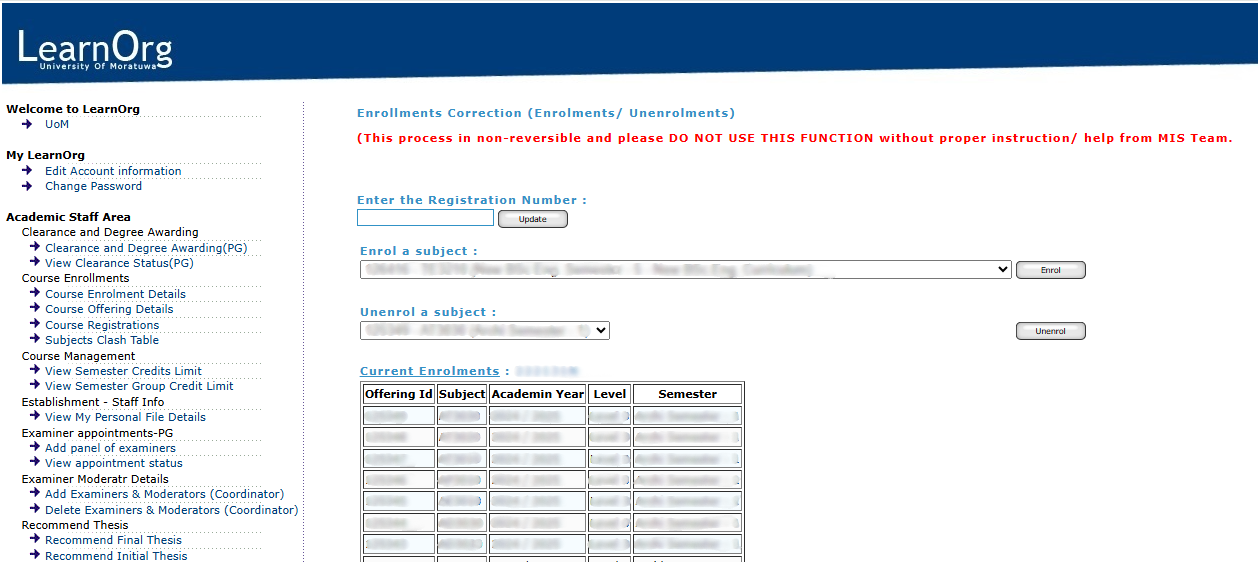](https://wiki.uom.lk/uploads/images/gallery/2025-06/6Qt9i3XA8AVwPgUf-figure-12-enrollment-correction-1111.png)
Figure 12 -